
Archive or unarchive an email with Professional Email powered by Titan
To keep your inbox free of clutter, move messages to your Archive folder. Messages in the Archive folder are never deleted.
Select a tab based on whether you're on webmail on desktop or the mobile app.
Archive an email
- Sign in to webmail. Use your Professional Email powered by Titan address and password (your 123 Reg username and password won't work here).
- In your inbox, select an email.
- Above the email, select Archive.
The email will be moved to the Archive folder. It’ll remain in the folder indefinitely unless you delete it or move it back to your Inbox.
Unarchive an email
- Sign in to webmail. Use your Professional Email powered by Titan address and password (your 123 Reg username and password won't work here).
- On the leftmost side, select the Archive folder.
- Select an email.
- Above the message, select Move to folder, and then Inbox. If you can’t see Move to folder, select
 More actions, and then Move to folder.
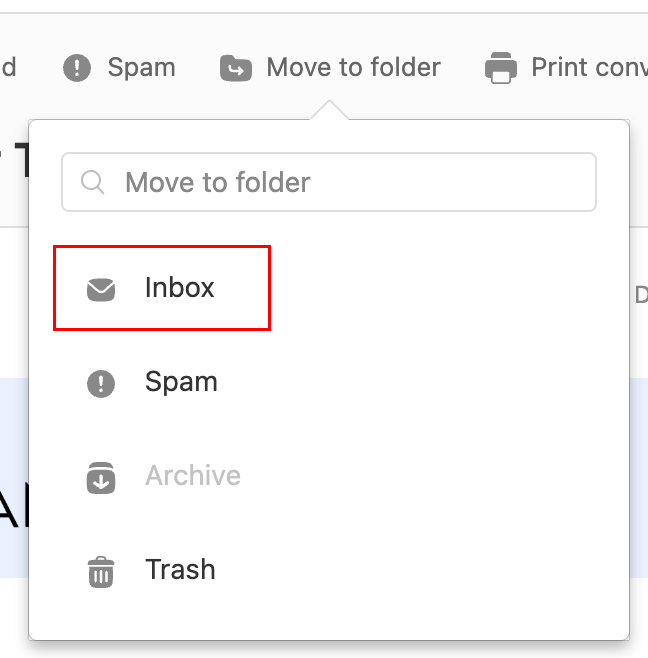
You’ll see a message confirming that the email was moved to your inbox.
Archive an email
- Open the Titan app.
- In your inbox, tap an email.
- At the top of the email, tap
 Archive.
You'll see a confirmation that the conversation was moved to the archive.
Unarchive an email
- Open the Titan mobile app.
- In the upper-right corner, tap the
 icon for the menu. menu or swipe left, and then tap Settings.
 - Tap Archive.
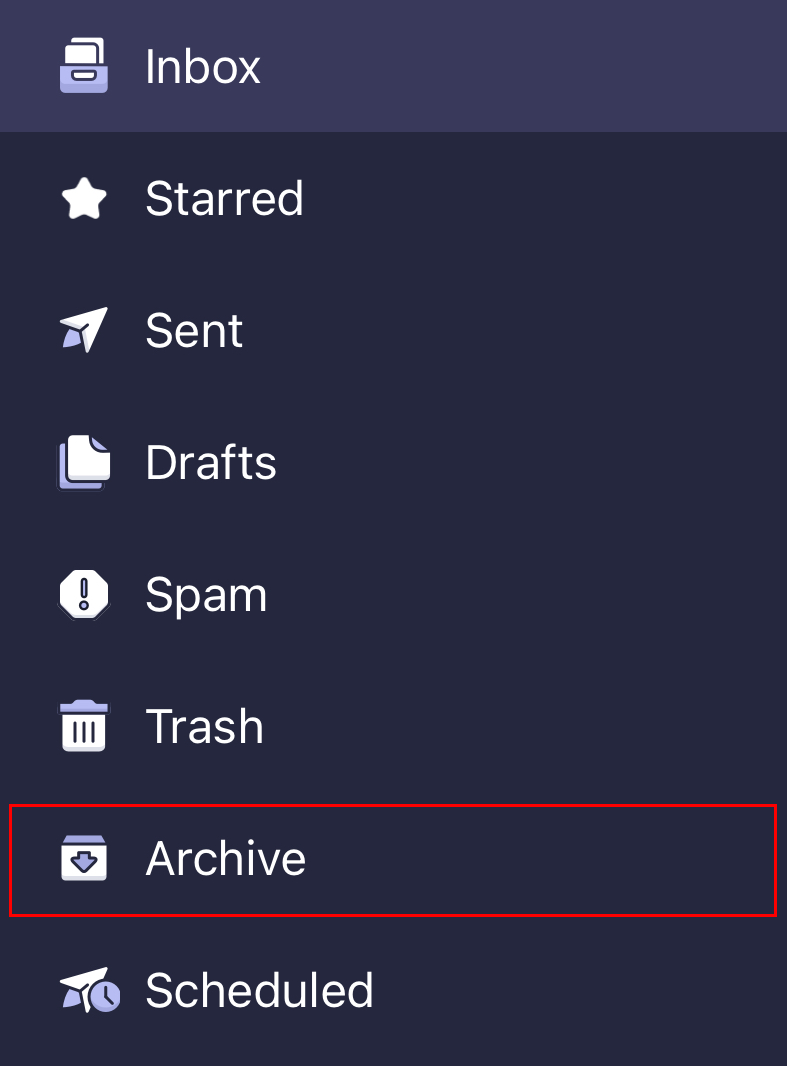
- In the upper-right corner, tap
 More actions, and then Move to folder.
 - Tap Inbox. You'll see a confirmation that the message was moved to your inbox.
More info
- To archive email older than a certain date, filter your messages first using Advanced Search.
- Use email labels to organize my inbox
- Forward Professional Email messages to another address