
Block a sender with Professional Email powered by Titan
Blocking a sender helps prevent spam and reduces inbox clutter by stopping unwanted emails from specific sources. It can help maintain the privacy and organization of your email account.
Select a tab based on whether you're on webmail on desktop or the mobile app.
- Sign in to webmail. Use your Professional Email powered by Titan address and password (your 123 Reg username and password won't work here).
- In your inbox, select a message.
- Above the message, select Block.
- Choose whether to block the email address or the domain. (If you select the domain, all future emails coming from anyone with that domain will get blocked.)
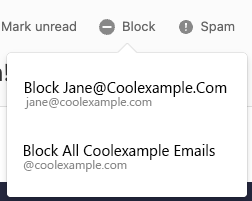
- To confirm your choice, select Block.
All future emails from this sender will go to the Trash folder. Messages are deleted from the Trash folder after 30 days.
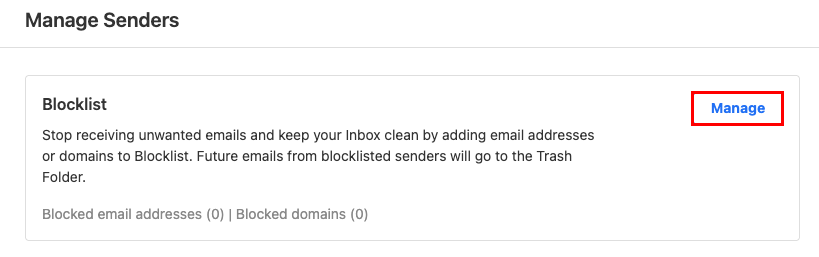
To see your blocked senders, in the upper-right corner, select Settings, Preferences, and then Manage Senders. Next to Blocklist, select Manage.
- Open the Titan app.
- In your inbox, tap an email.
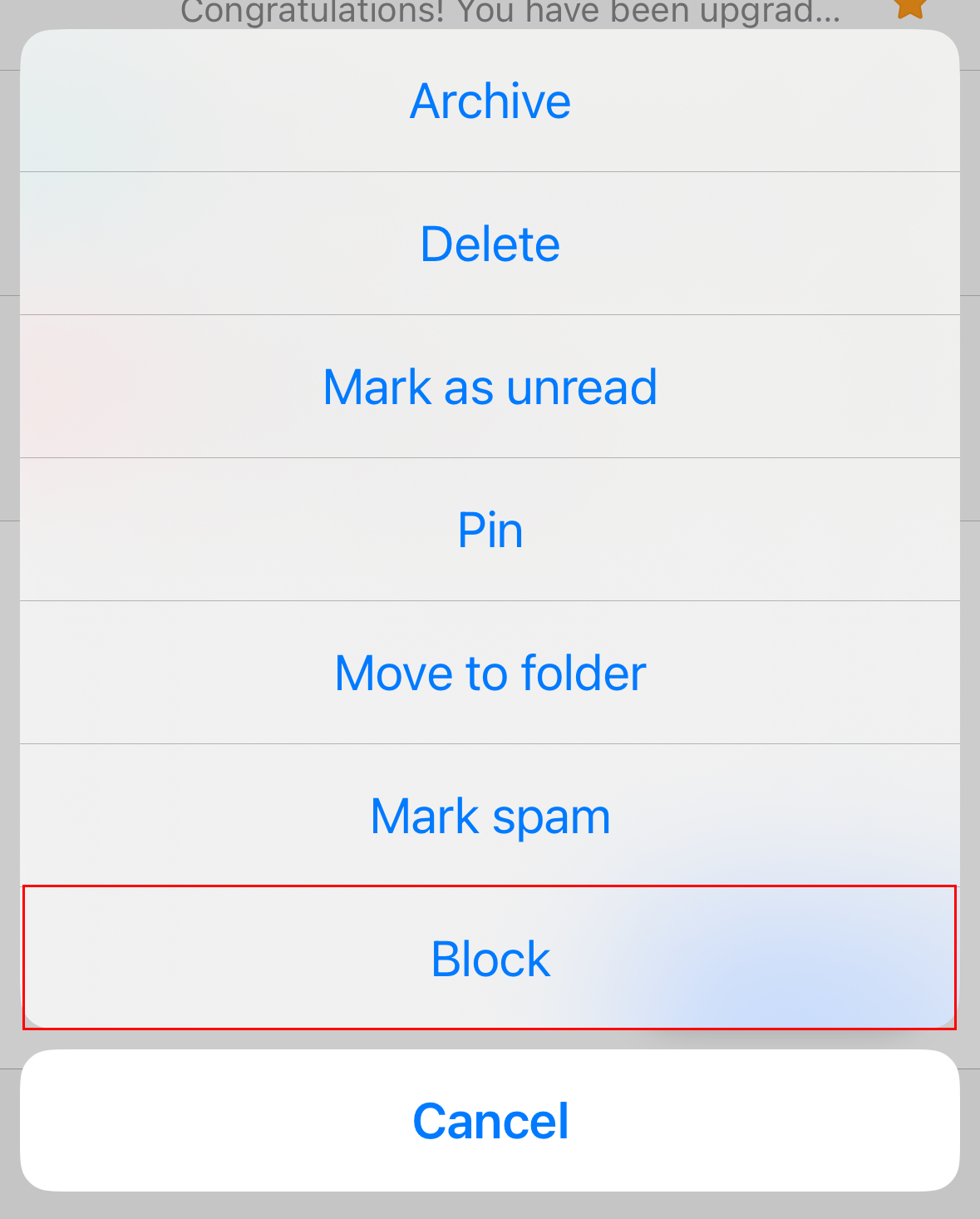
- In the upper-right corner, tap
 More actions, and then Block.
- When asked whether you want to block the email address or the domain (all email addresses that use the domain), tap an option.
- To confirm you want to continue with the block, tap Block.
You'll see a confirmation that the block was completed successfully.