


If you’ve bought a domain together with a 123 Reg plan like Website Builder or Managed WordPress Hosting, the chances are it’s already connected — so once you’ve hit publish, it should appear when someone visits your web address.
There are other times when you’ll need to connect it yourself. For example, if the domain is in a different account, if you’re switching to a different hosting plan, or if your site is hosted somewhere else.
This guide explains how the connection works, and what to do if you need to manually “point” your domain to 123 Reg hosting or a third-party website.
Why do you need to connect your domain?
Your domain name is what people type in to find your site, like “your-big-idea.co.uk”. Your website is the content you’ve built using an easy tool like Website Builder or Managed WordPress Hosting, or perhaps even one you’ve set up yourself with hosting.
On their own, they don’t link up. Connecting them makes sure that when someone enters your domain, they’re taken to your website.
If your domain isn’t connected to your website, people won’t be able to reach your site through your main web address. Your website might still exist on a temporary address, but your domain won’t take visitors there until it’s linked properly.
It’s a bit like putting a house name on your front door. Connecting your domain is that simple final step that turns your web address into a real destination for visitors.
This is also important because it helps search engines understand where your site lives. When your domain is connected, Google can find and show your pages in results, which helps people find you more easily over time.
How do I connect my domain to a website?
There are two main ways this usually works. In many cases, the connection is already set up for you, or you can quickly assign your domain inside your 123 Reg Control Panel. Otherwise, you may need to point the domain yourself so it links to the right website.
☐ Automatic or guided connection (common when bought together)
When your domain and website product (like Website Builder or Managed WordPress) are in the same 123 Reg account, they’re often linked during setup or shown as ready to connect. In most cases, you just choose the domain and assign it to your site in your Control Panel.
☐ Manual connection (when they aren’t already linked)
If the domain isn’t already assigned, you can connect it from inside your website product settings by selecting the correct domain and linking it to your site.
If your website is hosted outside of 123 Reg, you’ll need to point your domain using DNS records or nameservers instead.
What you need before you connect your domain
Before you start, it helps to have a few things ready:
✓ A domain registered with 123 Reg (or one you’re happy to move or connect).
✓ A live website already built, whether with 123 Reg hosting or a third-party provider.
✓ Access to your 123 Reg account and the product where your site is managed (for example, Website Builder or your hosting control panel).
If you’re using 123 Reg Website Builder, it’s a little easier when both the domain and the site are in the same 123 Reg account, so it’s worth checking that first.
Can I use more than one domain for the same website?
Yes! And it can actually be a good idea. You can register multiple domains in your 123 Reg account and point them all to the same website. That helps you cover different versions of your name, common misspellings, or alternative endings, so people still find you even if they don’t type the exact address.
What should I do if your 123 Reg domain is in a different account?
If your domain is with 123 Reg but sits in a different account to your Website Builder site, you won’t be able to connect it straight away. The domain needs to be in the same 123 Reg account as your Website Builder product before it can be linked. You’ll need to transfer the domain into the correct account first. Once that’s done, you can continue with the normal steps.
How to connect my 123 Reg domain to my Website Builder site
Start by going to your 123 Reg My Products page. In Websites + Marketing, select Manage next to your website. From your dashboard, select Edit Website to open Website Builder (like you would if you were going to edit your site).
From there, go into Settings in the right-hand menu and click Manage. You’ll see the domains in your 123 Reg account in the dropdown under “My Domain”. Simply choose the domain you want to use, then click Save & Publish to connect it to your site.
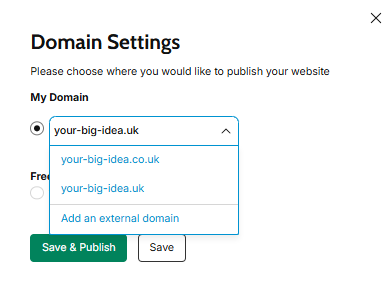
In most cases, the change happens within a few minutes, but it can take up to 72 hours to fully update.
For more, see our Support article: Connect your Website Builder site to a new domain
Connecting your Website Builder site to an external domain
You’ll also see an option to Add an external domain. This is for domains that aren’t already set up in the same account or aren’t currently linked to your Website Builder site.
When you choose this option, your domain needs to be pointing to your Website Builder site using an A record. This is a DNS setting that connects your domain to your website using an IP address. You’ll find the correct A record details in your Website Builder settings when you select Add an external domain.
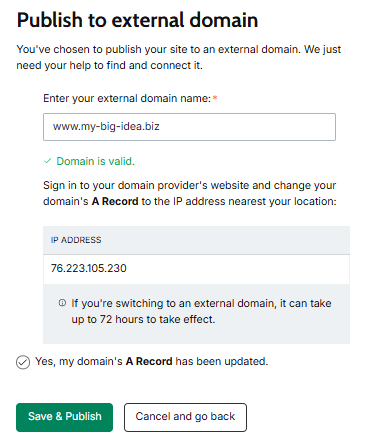
Then, tick the box that says “Yes, my domain’s A record has been updated”, and click Save & Publish to complete the connection.
For more help, see our Support article: Connect my Website Builder site to a domain registered outside of 123 Reg
Once your domain is connected, your website is ready for visitors. You can check or update it anytime in your 123 Reg account.
How to connect your 123 Reg domain via the Control Panel
If your domain and website product are in the same 123 Reg account, you can usually connect them directly from your account. In most cases, you won’t need to change DNS settings.
Connect your domain to a 123 Reg hosting product manually
If your domain isn’t already linked to your website, you can connect it manually inside your 123 Reg account.
Start by signing in and going to My Products. Under Domains, click Manage next to the domain you want to connect.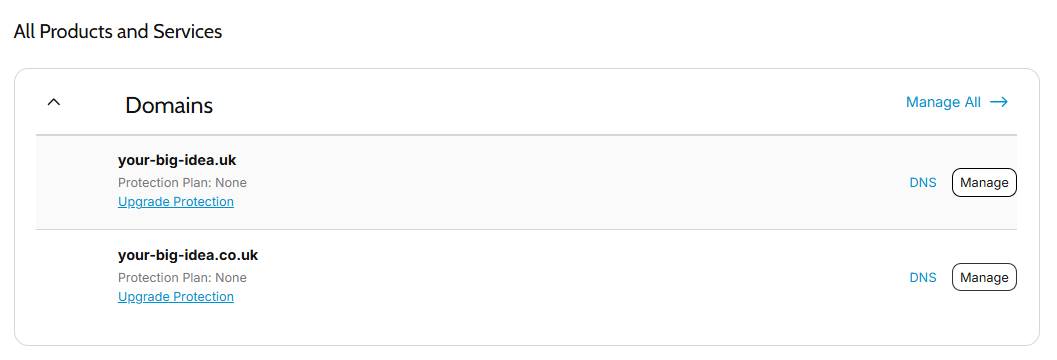
This is where you control how your domain works, including DNS records, nameservers, and other settings.
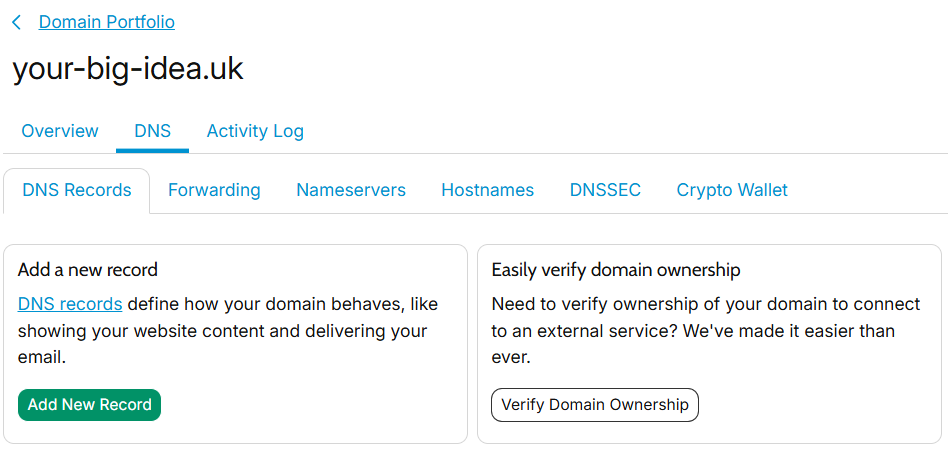
If you’re using a 123 Reg website product such as Website Builder or hosting, you can connect the domain directly to that product from within your account.
If you’re using a different setup, you may instead need to update your nameservers or adjust DNS records such as A and CNAME records.
What’s the difference between DNS records and nameservers?
The Domain Name System (DNS) works in the background to link your domain name (like 123-reg.co.uk) to the right website. Essentially, it tells the internet where to send visitors when they type in your web address by pointing it to the correct IP address.
A part of DNS, they tell your domain where everything is managed (like your website, email, and other settings). When you change nameservers, you’re effectively handing those settings over to another provider. They look something like “ns1.example.com” or “ns2.example.com”
How to point my 123 Reg domain to a website hosted elsewhere
If your website is hosted outside of Website Builder, or you’re using a different hosting provider, you’ll usually need to point your domain manually. This tells your domain where your website is stored so it can load when someone visits your web address.
You can do this in one of two ways: by updating DNS records or by changing nameservers. Your hosting provider will normally tell you which option to use and give you the details.
Option 1 — Update DNS records (keep control with 123 Reg)
This option is best if you want to keep managing your domain in your 123 Reg account.
You’ll usually update:
☐ An A record points your domain to a website using an IP address
☐ A CNAME record points your domain or a subdomain to another domain name provided by your hosting company
Your hosting provider will give you the exact values to use.
You can manage DNS records in your 123 Reg account under your domain’s DNS settings.
Once updated, save your changes. It can take a short while for everything to update across the internet.
Option 2 — Change nameservers (let your host manage everything)
If you’re using nameservers, your hosting provider takes control of all your DNS settings. This means they manage where your website points, and any future changes are handled in their system instead of 123 Reg.
First, log in to your 123 Reg account and find the domain you want to connect. Go to the DNS or nameserver settings for that domain. You’ll see the option to switch from default nameservers to custom ones. Enter the nameservers provided by your hosting company (usually two addresses, such as ns1 and ns2), then save your changes.
Once saved, your hosting provider will manage the connection between your domain and your website. It may take a short while for everything to update across the internet.
Should I change nameservers or just update DNS records?
It really comes down to how much control you want to keep:
☐ If you update DNS records, you keep your domain with 123 Reg and only change the specific parts you need (like A or CNAME records).
☐ If you change nameservers, your hosting provider manages everything for your domain, including how it connects to your website and other services.
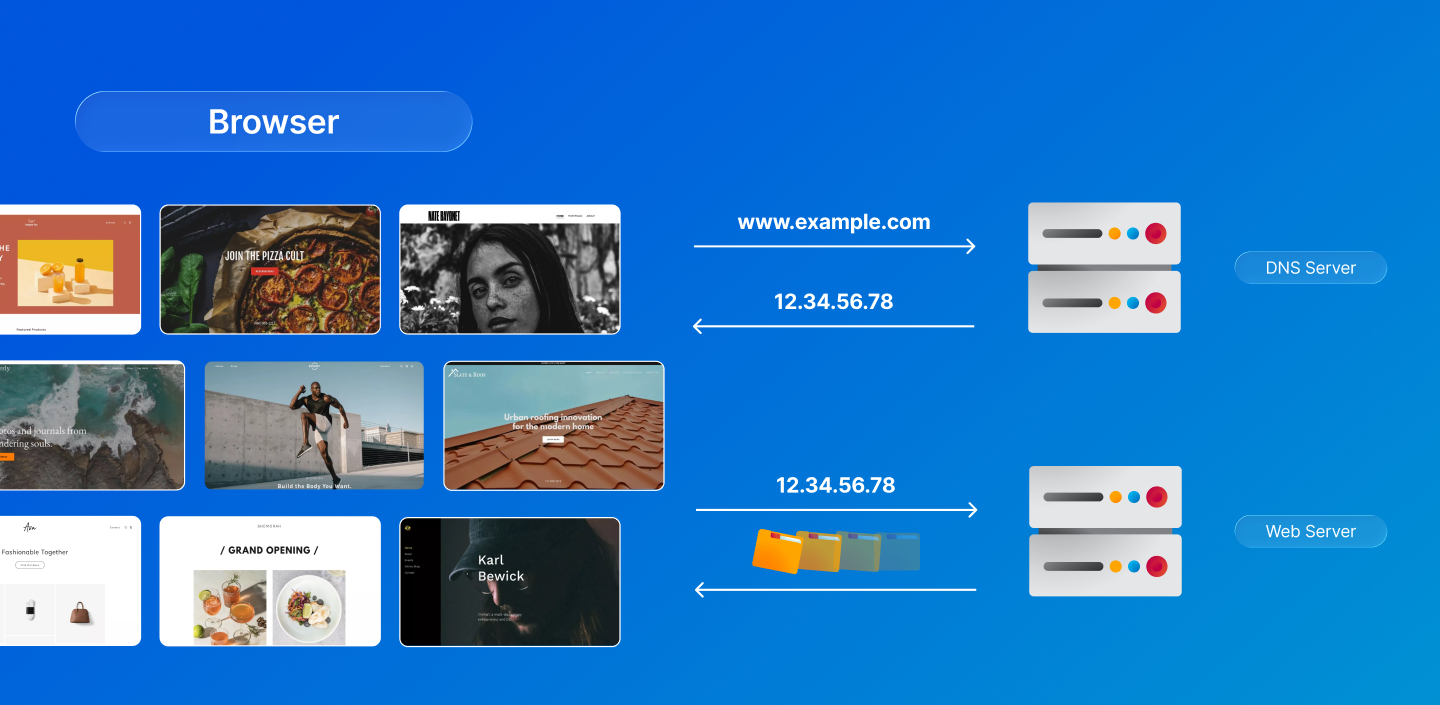
See also: What is DNS? How Do Websites Get Found Online?
What happens after you make changes
After you update nameservers or DNS records, your website won’t always update instantly. This is normal and is called DNS propagation. It simply means the changes are spreading across the internet so everyone sees the same version of your site.
In most cases this happens within a few minutes or hours, but it can take up to 48–72 hours to fully update everywhere. During this time, your site might load in some places but not others — this usually settles on its own.
Ready to get your site live? Connect your domain so it points to the right place.
Related Support Articles
For more help, see our support guides:
• Connect your Website Builder site to a 123 Reg domain you already own
• Connect your Website Builder site to a domain registered outside of 123 Reg
• How do I point my domain to 123 Reg hosting?
• How do I point my 123 Reg domain to my third-party website?
Still stuck? If you need a hand connecting your domain, our Support team is here to help you get everything set up.
Wrap up
Once your domain is connected, your website has a proper home online and is ready for visitors. It’s time to go live — get online today!

FAQ
How long does it take for a domain to start working?
After you connect your domain, it usually starts working within minutes, especially if you’re just updating DNS records or assigning it in the same account.
For bigger changes like switching nameservers or moving between accounts, it can take up to 48–72 hours for everything to fully update across the internet.
What is DNS?
DNS (Domain Name System) is the system that translates a domain name, like 123-reg.co.uk, into the numeric IP address that computers use to find websites. It’s what makes a simple web address take you to the right website anywhere in the world.
What are nameservers?
Nameservers are the details you enter when you want to connect your domain to a different provider. They usually look like a set of web addresses (for example: ns1.provider.com, ns2.provider.com). When you update them, you’re telling your domain to use another company’s settings for things like your website and email, rather than your current ones.
Should I use nameservers or DNS records to point my domain?
If your hosting provider manages everything for you, changing nameservers is usually the simplest option. If you want to keep your domain and DNS settings in your 123 Reg account, updating DNS records (such as A or CNAME records) is usually the better choice.
Can I use web forwarding instead of pointing my domain properly?
Web forwarding is a simple way to send visitors from one domain to another web address. It’s often used for basic redirects, for example sending a shorter or older domain to a main website. Forwarding is useful if you own multiple domains, but it’s not ideal if you need full website control, email, or subdomains linked to your domain.
For more, check out: What is Web Forwarding?
How do I connect email to my 123 Reg domain?
To connect email to your 123 Reg domain, you usually add or update MX records in your DNS settings that point to your email provider’s servers. Many providers also give you TXT or SPF records to help prevent spam, which you can add in the same DNS area in 123 Reg.
Can I point the same domain to more than one website?
A domain can only serve one main website at a time, but you can use subdomains (like shop.example.co.uk) or folders to host different sites or services under the same domain. You can also redirect parts of the site to different platforms, as long as you manage the routing in DNS or your hosting.
Importantly, you can buy multiple domains and point them all to your website, which can be a great way to protect your brand and potentially increase traffic.
What are some common mistakes to avoid when connecting a domain?
✗ Choosing the wrong record type – for example, adding a CNAME when your host wants an A record, or turning nameservers when you only need a simple DNS record change.
✗ Only updating one part of the address – many people set up www but forget the root domain (example.co.uk), or do the root but not the www, so one version of the site doesn’t load.
✗ Not allowing enough time – DNS changes can take a while; assuming something’s broken after a few minutes when it just needs tens of minutes or up to 48–72 hours to fully update.
✗ Using the wrong 123 Reg account – for Website Builder, the domain and the site need to be in the same 123 Reg account (or the domain moved there). This is typically all done automatically so you shouldn’t need to worry about it. If, however, you’ve got a 123 Reg domain but hosting the website elsewhere, the domain can stay in 123 Reg while DNS or nameservers point it elsewhere.
What should I do if my domain still isn’t working after 48 hours?
If your domain still isn’t working after 48 hours and you’ve confirmed that your DNS or nameserver changes are correct, take a moment to double‑check the record types, account ownership, and any typos in the settings.
If everything looks right and your site is still not live, feel free to get in touch with our Support team. You can start a Live Chat or call us on 0345 450 2310, and we’ll be happy to help.