
WordPress is by far the world’s most popular website platform, and it’s not hard to see why: simple to use, flexible, and endlessly customisable, you get everything you need to create a site that works hard for your business.
It’s easy to get started with WordPress, but it does require a little more technical know-how than a drag-and-drop tool like Website Builder. The good news is that with Managed WordPress Hosting, everything is set up for you from the start, so you can skip the fiddly bits and get straight to building.
In this guide, we’ll walk you through the key steps to creating your WordPress site and getting it ready for visitors. Consider this a whirlwind tour of a very powerful platform – you won’t be an expert by the end, but you’ll have everything you need to get started.
Key takeaways
-
- ☑︎ 123 Reg Managed WordPress Hosting gets you set up and ready to go, with maintenance and updates all taken care of.
- ☑︎ Thousands of themes and plugins mean you can shape your WordPress site to fit your business, whatever that looks like.
- ☑︎ It’s easy to add new features as your business grows, from contact forms and bookings to full ecommerce with tools like WooCommerce.
- ☑︎ SEO-friendly structure and plugins make it easier for customers to find you on Google.
- ☑︎ Get a free domain name and matching email address with your annual 123 Reg hosting plan to add a professional edge to your business.
What is WordPress, anyway?
Chances are you’ve visited a WordPress site today without even knowing it.
At its core, WordPress is a website Content Management System (CMS): software that makes it simple to create, edit, and manage your website content through a dashboard, without needing to code.
But WordPress can do a lot more than run a blog. With the right plugins and themes, it can power a business site, an online store, a portfolio, a membership site, a booking system, a job board… pretty much anything you can imagine.
That flexibility is a huge part of why it’s so widely used, from personal projects to major news outlets and Fortune 500 companies.
Another key part of WordPress’s appeal is that it’s open source. That means it’s free to use, with a global community of developers constantly building new features, fixing issues, and improving the platform.
Because you own and control your website, you’re free to customise it your way. Choose from thousands of themes and plugins to add the features you need and create a site that works for your goals.
WordPress by the numbers
☐ It’s everywhere. WordPress powers around 42–43% of all sites globally — or about 800 million in total. No other platform comes close.
☐ It beats all the rest combined. WordPress makes up about 6 in 10 sites built on a website CMS platform, more than every other option combined.
☐ Small businesses love it. According to TechnologyChecker, about 77% of WordPress sites belong to companies with 10 employees or fewer, and another 13% come from businesses with 11–50 staff. Clearly the go-to choice for small teams and startups.
☐ Big in the UK. Nearly 1 million websites in Britain run on WordPress, putting the country among the top adopters worldwide.
Flexible by design
Much of WordPress’s power comes from plugins — simple add-ons that extend what your site can do. The library is huge, with around 60,000 free plugins in the official directory, and well over 110,000 once you include premium and third-party options. Chances are, whatever feature you need, there’s a plugin for it.
On the design side, there are thousands of free and premium themes to choose from, together with theme builders you can use like Elementor and Divi. That means you don’t need a developer or designer to create a custom, professional-looking site.
Built for growing businesses
For businesses that sell online, WordPress becomes a full ecommerce platform through tools like WooCommerce, powering over 4 million stores today, complete with payments and shipping.
Add in blogging tools, categories, tags, scheduling, and integrations with email, CRM and analytics platforms, and WordPress becomes a powerful foundation for content-led marketing.
Managed WordPress Hosting: The best of both worlds
While the software itself is free, you’ll still need hosting to keep your website online. Hosting stores your website files and delivers them to visitors whenever they access your site. 123 Reg Managed WordPress Hosting gives the freedom and flexibility of WordPress, without needing to worry about the technical side of running your hosting.
If you don’t already have it, learn more about Managed WordPress Hosting, here.
Why businesses choose WordPress
✓ Up and running in no time
No coding required. The dashboard is simple and the visual editor shows you exactly what your page will look like as you build it, text, images and all.
✓ Made for your business, built to grow with it
Portfolio site, online shop, booking platform: WordPress can handle it, with thousands of free and premium themes and plugins to help you shape it to fit exactly what you do. And when you’re ready to expand, whether that’s a blog, new pages or online sales tools, you can build on what you’ve got rather than starting again.
✓ Your site, your rules
WordPress is open source, so you own your site and your data. Move host, change your domain, do things your way, whenever you need to. And with millions of users, developers and designers sharing tips and tutorials on sites like WPBeginner and the WordPress.org forums, support is always close at hand.
✓ There’s a plugin for that
Contact forms, live chat, social feeds, ecommerce: whatever you need, there’s a plugin for it. More on that later.
✓ Security updates done for you
WordPress rolls out regular security updates to help protect your site from threats, and with millions of sites relying on it worldwide, vulnerabilities get spotted and patched fast. Managed WordPress Hosting takes care of security updates for you, helping keep your site secure.
✓ Search engines love it
WordPress sites are structured in a way search engines understand, and tools like Yoast SEO make optimising your pages simple.
✓ Built for speed
A fast site keeps visitors around and helps your search rankings. WordPress is lightweight by design, and paired with good hosting, it can load quickly even as your site grows.
That brings it down from 8 points to 6, a bit tighter while still covering everything. Let me know if you’d rather keep any of the merged points separate.
What do you need to build a WordPress site?
Every business starts with an idea — that part’s down to you. From there, you can build just about any sort of website with WordPress. You’ll need a great domain name for your brand, and a matching email address to build trust. With 123 Reg Managed WordPress Hosting, it’s all included: a free domain for your first year, professional email, SSL security, and of course WordPress itself, all set up and ready to go.
See also: What are the Benefits of a Professional Email Address?
Getting started with WordPress
We’ll assume you’ve already purchased your plan and you’re ready to go.
First things first, let’s get you logged in and get WordPress open.
1. Log in to your 123 Reg account and go to My Products.
2. Under Managed WordPress, click Manage next to your site. (If this is your first time, you may see Set up instead.)
3. This takes you to the main management page. Click Edit Site to get WordPress open.
Your Hosting Overview
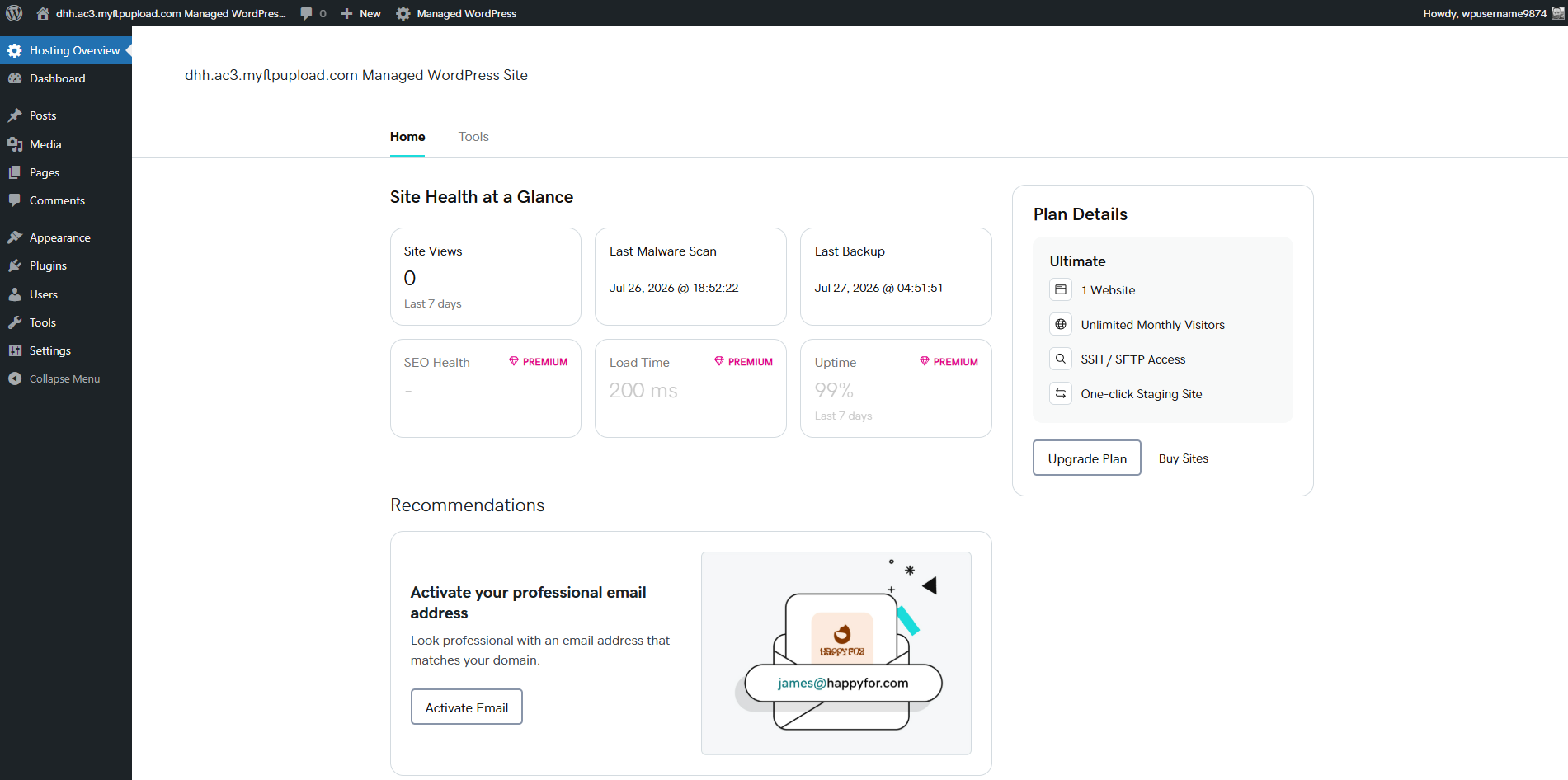
Once you’re in, the first thing you’ll see is your Hosting Overview. The Home tab gives you an at-a-glance view of your website’s key information, including:
✓ Site views: how much traffic your site is getting
✓ Last backup: when your site was last backed up
✓ Last malware scan: when your site was last checked for threats
Plus, you can activate or connect additional services, such as your matching 123 Reg email address.
With a Premium plan you’ll also get extra insights into areas like SEO health, page load time and uptime, helping you keep track of your site’s performance.
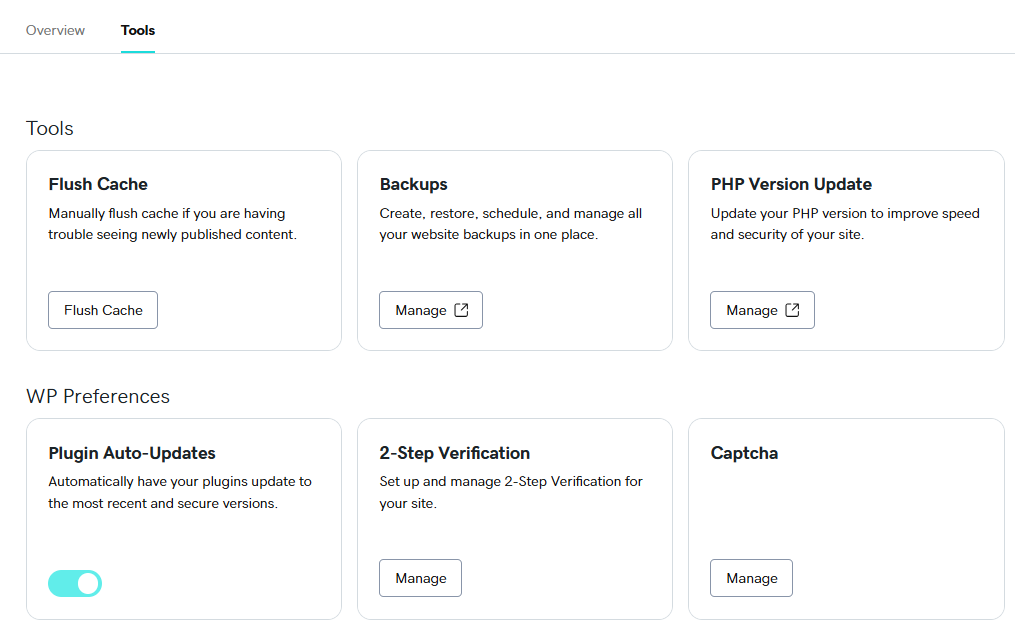
The Tools tab is where you’ll find the more technical side of managing your site, covering everything from performance and security to troubleshooting. There’s more here than we can cover in full in this guide, but a few highlights are worth knowing about.
If you’re not seeing your latest changes reflected on your site, Flush Cache is a one-click fix. You can also create, restore and manage backups whenever you need to, and check or update your PHP version to help keep your site fast and secure.
For extra peace of mind, features like Plugin Auto-Updates and Captcha add extra layers of security, all switched on with a click. There’s also TrustedSite, an optional add-on trustmark to help boost customer confidence.
You’ll also find a set of Recommended Troubleshooting Tools, optional plugins you can install if you ever need to dig deeper into a site issue.
Well move on though, as you don’t need any of this to get started, but it’s all there for when you need it.
Setting up WordPress with Web Hosting
If you’ve chosen Web Hosting (or Premium Hosting), you’ll need to install WordPress yourself before you can start building. It’s easy and typically only involves a few clicks through your hosting control panel. For help, check out our Support article: How do I install WordPress on my Hosting package?
Not sure which option’s right for you? Read: Managed vs Self-Managed Hosting – How to Choose the Best Option for Your Business
Welcome to the dashboard
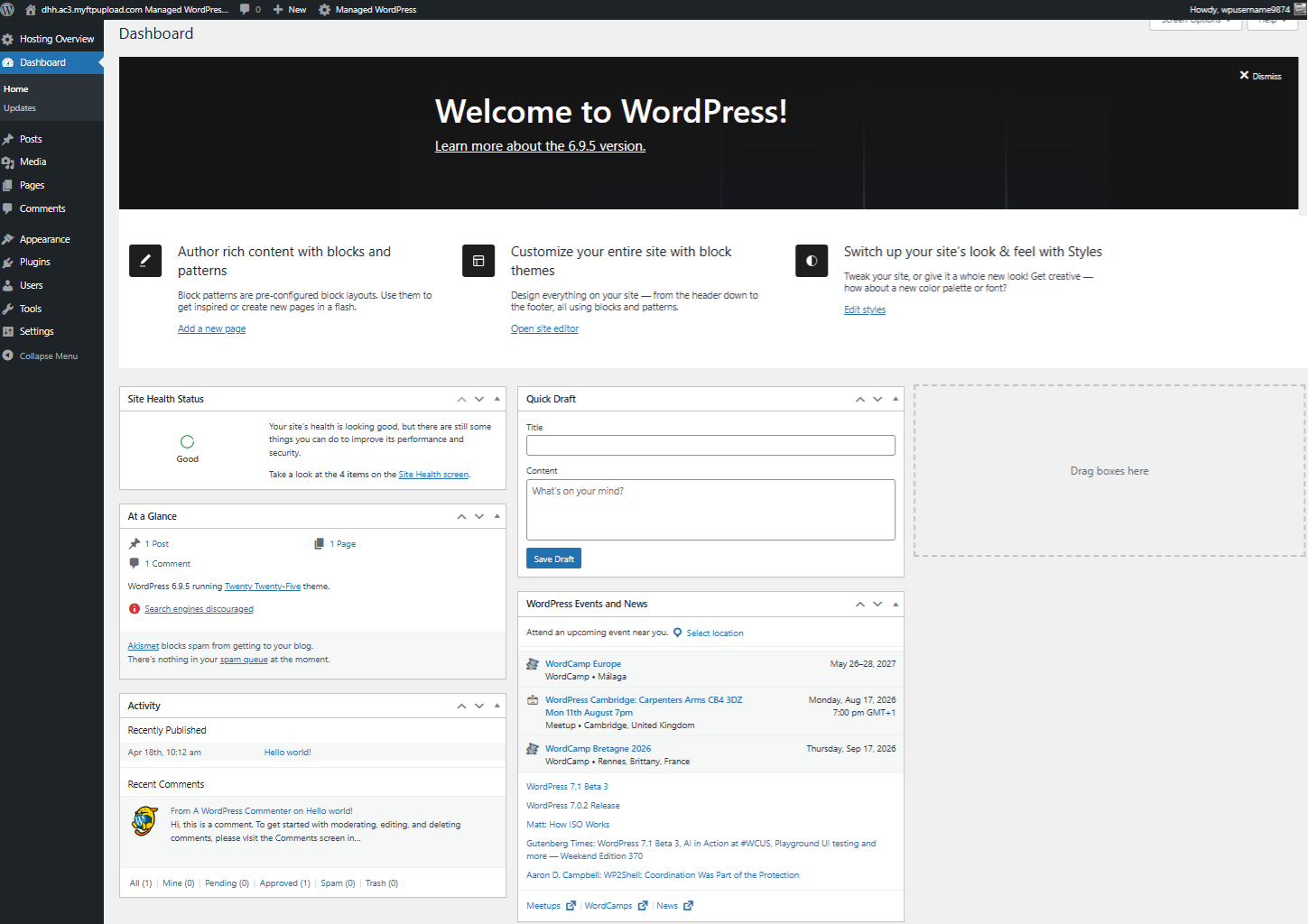
Just below Hosting Overview in the left-hand menu, you’ll find Dashboard, WordPress’s own home screen.
Click through and you’ll land on the main control centre for your site, where you’ll see a collection of information boxes (known as dashboard widgets) that you can move around.
This is where the magic happens, your starting point — a blank canvas ready and waiting for your ideas, with everything you need close at hand to start shaping it into your website.
Time to start building
You’re on the WordPress dashboard, but right now the site is empty: no theme, no plugins, nothing published. This section is about getting oriented and making a few smart early decisions before you touch plugins.
On the left-hand menu, you’ll see a handful of names that will become familiar fast. Posts is for blog-style content, anything time-stamped, like news, articles or updates. Pages is for static content that doesn’t really expire, think your homepage, About page or Contact page. Appearance covers how your site looks, from themes to menus to widgets. Plugins is where you add features like forms, SEO tools or galleries (more on these later). And Settings covers the behind-the-scenes basics, like your site title, timezone and permalinks.
If it all feels like a lot to take in, here’s a shortcut: content lives in Posts and Pages, design lives in Appearance, and features live in Plugins. Most of what you’ll do in WordPress fits into one of those three categories.
One thing worth knowing early: when something needs updating, whether that’s WordPress itself, a theme or a plugin, you’ll usually see a small number appear next to the Dashboard menu to let you know.
Create your essential pages
Most sites start with a handful of pages: a homepage, an About page and a Contact page. Go to Pages → Add New to create each one, give it a title, add your content, and hit Publish.
One setting worth checking early is under Settings → Reading. By default, WordPress shows your latest posts on the homepage, like a blog feed. If you’d rather have a static homepage, switch this to “A static page” and choose which page to use for your homepage and, if you want one, a separate page for your blog posts.
Building your navigation menu
Once you’ve got a few pages published, it’s worth linking them together so visitors can get around. Go to Appearance → Menus, create a new menu, and add your pages from the list on the left. Drag them into the order you want.
At the bottom, you’ll usually see a display location, like “Primary” or “Header.” Assign your menu there so it shows up on the site. Some themes also support a footer menu, a nice spot for things like a Contact link or policy pages.
A few quick wins
Before the design work, it’s worth handling a few small settings that make everything easier later on.
Set your site title, tagline and icon. Go to Settings → General. Your site title is your site’s name and will appear in browser tabs, search results and often your header. The tagline is a short line describing what your site is about. While you’re there, you can also set a site icon (or favicon), the small image that shows up in browser tabs. None of this is permanent, but it’s worth setting something sensible now rather than leaving the default text.
Check your permalink structure. Go to Settings → Permalinks, which controls the structure of your URLs. By default, WordPress can generate URLs full of numbers and symbols (like ?p=123), but switching to something like “Post name” gives you clean, readable URLs (like yoursite.com/about-us) from the start. This one’s harder to change later once links and search engines point to the old version, so it’s worth sorting now.
Make sure your site can be found. Go to Settings → Reading and check that “Discourage search engines from indexing this site” is switched off. It’s sometimes ticked by default while a site’s under construction, and it’s an easy thing to forget about, but it means Google won’t be able to find you once you’re ready to go live.
Choose and customise your theme
A theme is the design layer of your site. It controls layout, typography and overall visual style, without touching your actual content. Switch themes later and your posts, pages and images stay exactly where they are.
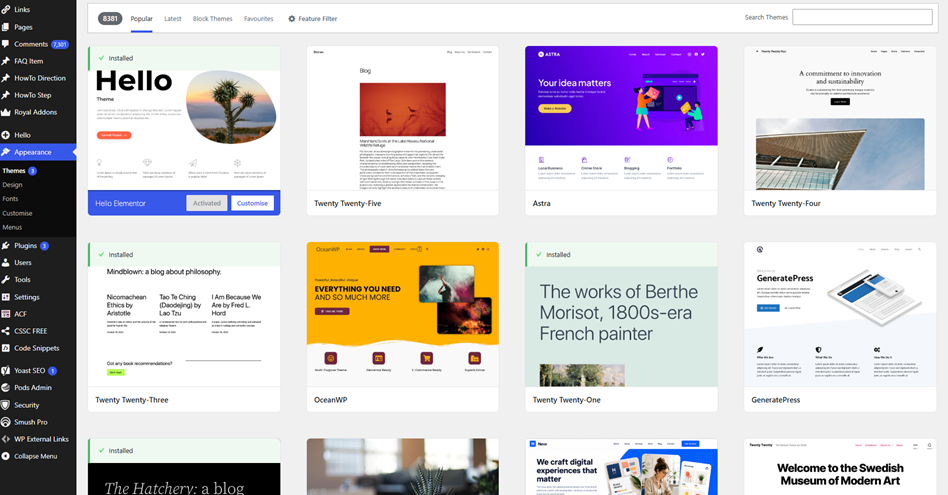
WordPress gives you a huge amount of choice here. The official directory alone has over 9,000 free themes, and premium marketplaces like ThemeForest add roughly 12,000 more (with plenty of other options scattered across the web too).
These include:
☐ Default WordPress themes, like Twenty Twenty-Four, are built and maintained by the WordPress team. They’re solid, simple and a safe starting point if you’re not sure what you want yet.
☐ Free themes from the directory offer thousands of options, built by independent developers and installable directly from Appearance → Themes → Add New. These really are more than good enough for most sites. You can learn more about free themes and how they work, here.
☐ Premium themes are usually purchased from a developer or a marketplace like ThemeForest, often with more built-in design options, page templates and dedicated support. These are worth it once you know roughly what you need.
☐ Page builder themes are designed to work closely with a page builder plugin like Elementor, giving you more drag-and-drop control over layout. These are useful if you want a lot of visual flexibility without touching code.
☐ Block themes are built around the WordPress block editor, letting you customise layout and design directly through the editor rather than a separate settings screen. Learn more about block themes, here.
For a first site, a well-reviewed free or block theme is usually the right call. You can always move to something more specialised once you have a clearer sense of what your site needs.
How to install your theme
Browse the theme library
Go to Appearance → Themes → Add New. You’ll find a searchable library of themes built into WordPress, where you can filter by “Popular” or search by keyword if you have something specific in mind.
Preview it safely
Before committing to a theme, click Preview. This shows roughly how the theme will look on your site without changing anything live, so you can compare a few options before deciding.
Activate it
Once you’ve chosen one, click Activate. Then visit your homepage (usually via a “Visit Site” link at the top of the dashboard) and take a look. Themes can render slightly differently live versus in preview, so it’s worth checking that nothing looks out of place.
Customise the basics
Logo, colours, fonts
Go to Appearance → Customize (or, on newer themes, the Editor). Depending on your theme, this typically lets you upload your logo, adjust your colour scheme, and change your font choices if supported. Most themes offer a limited, sensible set of options here rather than unlimited control, which helps keep things looking consistent.
Header and footer tweaks
While you’re there, check your header and footer. The header usually holds your logo and navigation, and the footer often has copyright text, contact details or quick links. Small adjustments here make a real difference to how finished the site feels.
Add extra features with plugins
A plugin is a small piece of software that adds a specific feature to your site, without you needing to write any code.
Want a contact form? There’s a plugin for that. Need an SEO checklist, an image gallery, a booking calendar, or an ecommerce store? All plugins.
WordPress offers a huge range of plugins, giving businesses the flexibility to add the tools they need as they grow. The Official WordPress Plugins Directory includes more than 61,000 free plugins, while the wider ecosystem is estimated to include over 110,000 options when premium plugins are included.
See also: A Beginner’s Guide to WordPress Plugins
How to install a plugin
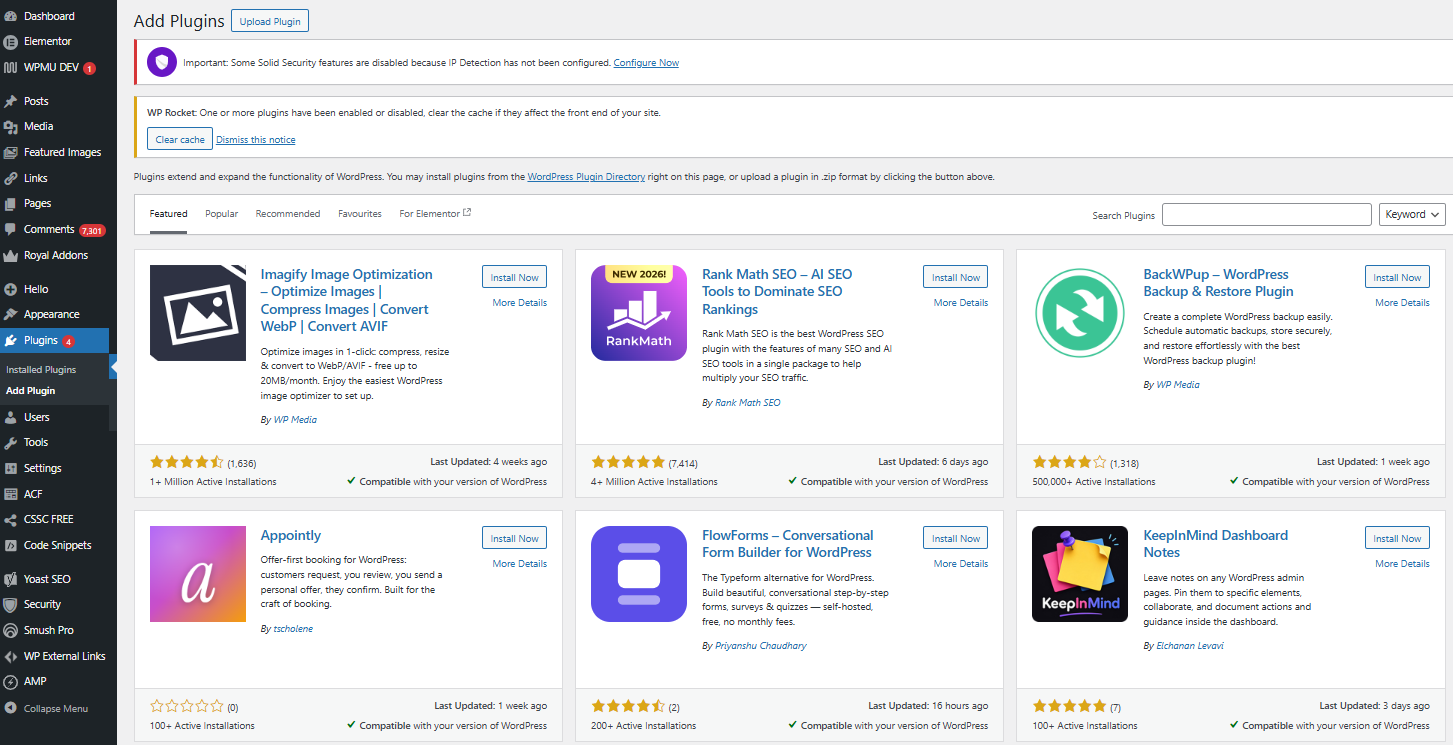
The most common way is from the dashboard. Go to Plugins → Add New. This opens a searchable directory, similar to the theme browser, where you can search by name (if you already know what you want) or by keyword (like “contact form” or “SEO”).
A few things are worth checking before installing anything: the number of active installs (a higher number generally means it’s well tested by real users), the rating (ideally a good average, backed by a decent number of reviews), and when it was last updated (recent updates suggest it’s still maintained, so be cautious with anything that hasn’t been touched in a year or more).
Once you’ve found one, click Install Now, then Activate. Installing alone doesn’t do anything, activation is what switches it on.
If you’ve bought a premium plugin or been given a plugin file (usually a .zip), go to Plugins → Add New → Upload Plugin, select the file, click Install Now, then Activate once it’s done.
After you activate
Most plugins add a new item to your dashboard menu, or a settings panel somewhere, once they’re active. It’s worth taking a minute after activating to find where its settings live and configure anything essential, a contact form plugin, for example, usually needs an email address set before it’ll actually send anything anywhere.
Keeping things tidy
It’s tempting to install a plugin for every idea that crosses your mind, but each one adds a bit of extra weight to your site and one more thing to keep updated. A good habit early on:
A handful of well-chosen, well-maintained plugins will serve you far better than a long list of half-used ones.
For more, check out: Better With Less – Essential WordPress Plugins for Business
Launch your new website
We’ve covered a lot of ground in this guide, from choosing a theme to installing your first plugin, and that’s really just scratching the surface of what WordPress can do.
You’ve already done the heavy lifting: picked a theme, installed plugins, and built your core pages. Now it’s time to make sure your site is properly “open for business”.
There isn’t one big “Publish” button for the whole site. If you installed WordPress through a host, your site is technically live as soon as it’s set up. The key is to remove anything that’s actively blocking visitors or hiding you from Google.
Remove common launch blockers
Coming Soon / maintenance mode – Turn off any “Coming Soon”, “Under Construction” or maintenance plugins or settings (often under Settings, a dedicated menu item, or your hosting panel).
Search engine visibility – Go to Settings → Reading and make sure “Discourage search engines from indexing this site” is unchecked. If this is ticked, Google and other search engines will ignore your site even though visitors can see it.
Once these are off, your site is effectively live. Everything else is about making that first impression count.
Final pre‑launch checklist
Nearly there. Now’s time to run through these checks as if you were a new visitor:
☐ Mobile looks right – Open your site on a phone (or use your browser’s mobile view) and confirm layouts, text and buttons look good, not just on desktop.
☐ Favicon and 404 page – Upload a simple favicon in the Customizer or Site Editor, and ensure you have a usable 404 page (most themes provide one by default).
☐ No placeholder text – Scan pages and footers for leftover theme demo text like “Lorem ipsum”, “Sample Page”, or “Edit this widget”.
☐ Navigation works – Click through your main menu, footer links and any call‑to‑action buttons to make sure they go where they should and don’t lead to empty pages.
You don’t need perfection on day one. You do need a site that looks intentional, works on mobile, and doesn’t accidentally tell Google to ignore you.
Keep your site growing
Getting your site live is a milestone, not the finish line. The real value comes from keeping it secure, up to date and gradually expanding it as your business evolves.
Keep everything up to date
WordPress, themes and plugins release regular updates to fix security issues, squash bugs and improve performance.
☐ On Managed Hosting, core updates, theme updates and plugin updates are handled automatically for you.
☐ On self‑managed hosting, you’ll need to log in every few weeks and run updates yourself via Dashboard → Updates and the Plugins and Themes screens.
Aim to update at least once a month; if you see a security‑related update, do it as soon as you can.
Backups and performance checks
Backups are your safety net if an update breaks something or you accidentally delete content.
☐ Managed Hosting includes daily backups as standard, so you can restore your site from a recent point if needed.
☐ On self‑managed hosting, set up regular backups via cPanel or a simple backup plugin, and test restoring once or twice a year so you know the process works.
It’s also worth checking page speed every few months (using a tool like PageSpeed Insights or your host’s built‑in tools). Faster pages keep visitors around and give you a small SEO boost.
Stuck? Help is never far away
You’ll come across questions this guide doesn’t cover, and that’s completely normal. If you need help with your hosting, the 123 Reg Support team is here to help with technical issues and getting your website online.
For WordPress-specific questions, the WordPress Support Forums and Learn WordPress offer free tutorials and community support. And if you’d like to build your skills further, like Udemy, Coursera and even LinkedIn Learning offer courses covering everything from the basics to more advanced WordPress topics.
Take the next step with WordPress
WordPress is the world’s most popular website platform for good reason: its flexibility, huge library of themes and thousands of plugins make it easy to build anything from a simple business site to a full online store, and with 123 Reg Managed WordPress Hosting, you’ve got everything you need to bring it to life.

FAQ
What do I need to start a WordPress website?
Mainly some time, a clear idea of what you want your site to do, and a few essentials: a domain name, a professional email address, and reliable hosting. A simple site can be up in a few hours, while something like an online shop takes a bit longer to set up properly. With 123 Reg Managed WordPress Hosting, you get everything you need in one place.
Do I need hosting to use WordPress?
Yes! Hosting is what stores your site and keeps it available to visitors. With WordPress, you choose your own host, which gives you full control over how your site runs. With 123 Reg, you can go fully hands-off with “managed” hosting, or install the WordPress CMS (app) yourself with Web Hosting.
What’s the best way to run WordPress?
WordPress gives you full control and flexibility since you choose your own hosting. With 123 Reg Managed WordPress Hosting, you get that same flexibility, but with the setup, updates, backups and security handled for you. If you’re tech-confident and prefer more hands-on control, Web Hosting lets you install and run WordPress (or any other CMS) yourself.
What’s the difference between Managed WordPress Hosting and Web Hosting with WordPress?
Managed WordPress Hosting is the simplest way to get started: WordPress comes pre-installed, with updates, backups and security handled for you. Web Hosting with WordPress gives you more hands-on control, you install WordPress yourself and manage things like updates and backups on your own.
Can I build a WordPress site myself without technical skills?
Yes. WordPress is designed to be beginner-friendly, with visual editors and ready-made themes, and Managed WordPress Hosting makes it even easier by setting things up for you.
How long does it take to build a WordPress website?
You can get a basic site with your main pages, Home, About and Contact, live in a few hours. Everything else can be built up over time, it doesn’t need to be done all at once.
How much does it cost to build a WordPress website in the UK?
Mainly your domain and hosting, which can be kept low-cost to start. You can add extras like premium themes or plugins later if you need them, and Managed WordPress plans often include useful features as standard.
Can I move my WordPress site to a different host?
Yes, whenever you like. WordPress is flexible, so you’re not tied to one provider. If you choose to move your site to 123 Reg, it’s simple, with migration tools and support to help you get set up without the hassle.
See also: How Do I Migrate My WordPress Website?