


Running a business website in 2026 isn’t about having the most features — it’s about having the right ones.
With thousands of WordPress plugins available, it’s easy to overload your site with tools you don’t actually need. The result can be slower load times, harder maintenance, and potentially even security risks.
We’ll cut through the noise in this guide and show you exactly which plugins are worth your time in 2026 (and the sort you can safely skip).

WordPress is still the go-to platform for businesses, powering over 43% of websites worldwide.
Downloaded over 1.2 billion times, millions of sites rely on WordPress plugins to extend what they can do. From smaller companies to enterprise brands, it’s trusted for one key reason: flexibility.
With more than 60,000 free plugins in the official repository — plus thousands of premium options — WordPress makes it possible to add almost any feature without writing code.
There’s a plugin for just about everything. 80% of WordPress sites use at least one plugin, with most relying on several for everything from SEO and contact forms through to full eCommerce functionality.
❝More than 80% of WordPress sites use at least one plugin, with many relying on several for everything from SEO and contact forms through to full eCommerce functionality. There’s a plugin for just about everything.❞
But more isn’t always better. With thousands of plugins out there, it’s tempting to install everything that looks useful — and easy to regret it later.
The real power of WordPress isn’t in stacking dozens of plugins. A small, carefully selected set of high-quality plugins should be able to deliver everything you need while keeping your site fast, secure, and manageable.
What are WordPress plugins, anyway?
A plugin is a small piece of software that adds extra features to your website without changing its core code.
Instead of relying on one all-in-one system, WordPress lets you build your site around the features you actually need. That could be something simple like a contact form, or something more technical like improving SEO, boosting performance, or adding advanced security.
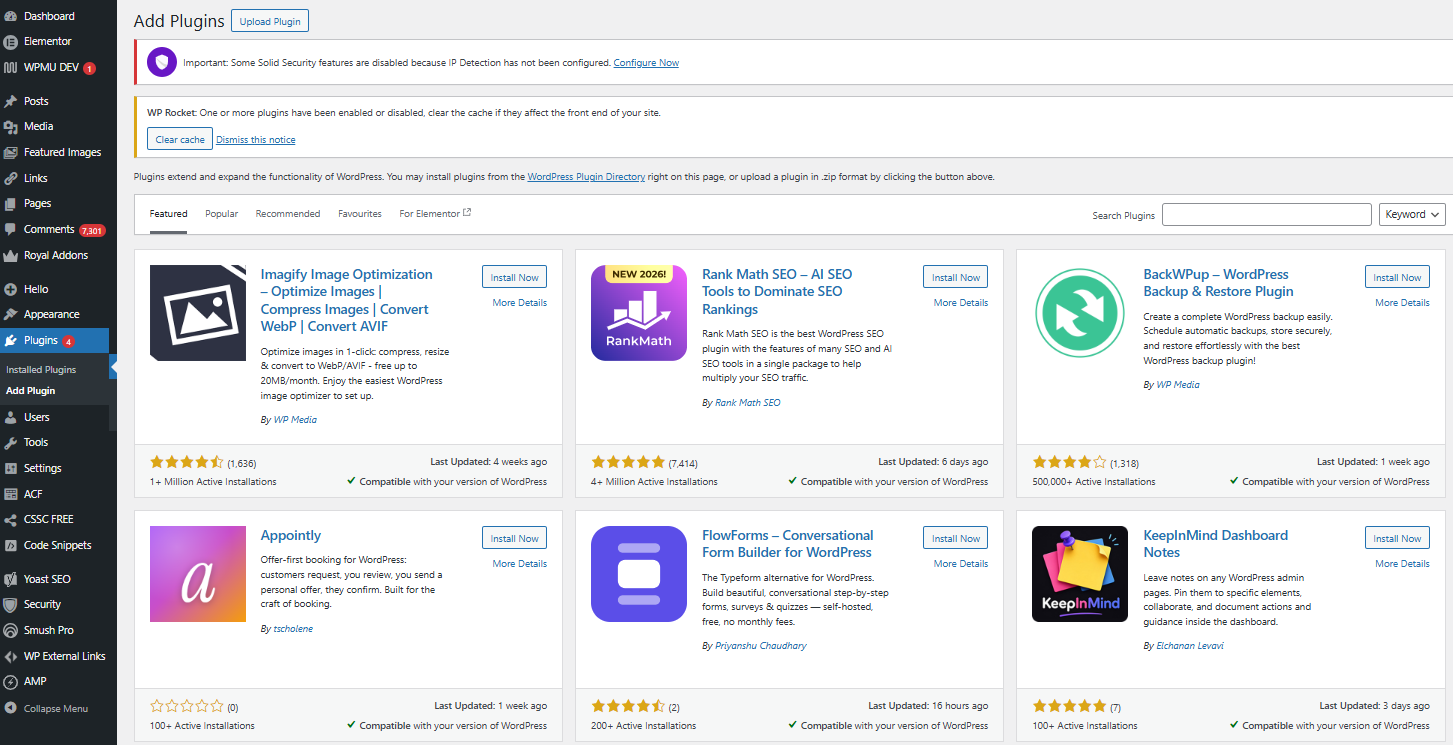
How to install a WordPress plugin
It really couldn’t be simpler. If you can install an app on your phone, you can install a WordPress plugin!
✓ Go to your WordPress dashboard, then click Plugins → Add New
✓ Search for the plugin you want using the search bar
✓ Click Install Now, then Activate
That’s it! Once activated, it will be ready to use, and you’ll usually see its settings appear in your dashboard under ‘Plugins’, ‘Settings’, or another relevant menu, depending on the type of plugin.
See also: A Beginner’s Guide to WordPress Plugins
Why plugins matter
WordPress is popular because it’s flexible — and plugins are what make that flexibility possible.
They power everything from simple brochure sites to full online stores. Tools like WooCommerce enable eCommerce, while page builders and block-based editing tools make design accessible without code.
Themes control how your site looks. Plugins control what it can do:
✓ Improving SEO and visibility
✓ Enhancing speed and performance
✓ Reducing the need for custom development (saving time and cost)
✓ Enabling advanced features without coding
Put simply, WordPress isn’t defined by the platform itself, but by what you build on top of it — and plugins sit at the centre of that.
A lean plugin setup works best on the right foundation. 123 Reg Managed Hosting for WordPress takes care of updates, performance, and security in the background, so your site is easier to manage day to day.
Before you install plugins:
☐ Only install plugins from trusted sources (official repository or direct from reviewed/reputable providers)
☐ Check the last update date and support activity
☐ Test new plugins on a staging site first before rolling them out to a live business site
Also: Remember to keep your plugins up to date. Outdated or unmaintained plugins are a common cause of security and compatibility problems, so always prefer well-supported, frequently updated ones.
Key trends shaping WordPress plugins in 2026
✓ AI is built into everyday tools
AI features are increasingly embedded across plugins — from SEO and writing tools to page builders and accessibility features. These tools are designed to speed up workflows, not replace them.
✓ Block-based design is now standard
Gutenberg and block themes are the main way sites are built now. Most new plugins are designed to work inside the block editor, not as separate builders that replace it.
✓ Security and compliance are expectations
Plugins are now built with stronger security, better performance, and broader compatibility. Features like cookie consent, accessibility support, and data handling are no longer optional — they’re standard for most business sites.
See also: 17 Top New AI Plugins for WordPress
How many WordPress plugins do I need?
The average WordPress site uses 18 to 25 plugins, according to WP Support Lab. But there’s no fixed number — It really depends on what your site does. A small blog might only need a few basics, while a shop or business site will need more tools to run.
Most successful websites rely on a small, focused set of plugins that handle the essentials well. If you’ve got two SEO plugins or two caching tools running at once, that’s a pretty good sign it’s time for a tidy up.
| Site Type | Typical Plugin Range | What it usually includes |
|---|---|---|
| Simple blog | 10–15 | SEO, security, forms, basic speed tools |
| Business website | 20–25 | Analytics, CRM, backups, automation |
| Online store (WooCommerce) | 30+ | Payments, shipping, stock, product tools |
And most WordPress plugins fall into a few main categories:
| Category | What it covers | Typical examples |
|---|---|---|
| SEO & optimisation | On-page SEO, XML sitemaps, readability, schema | Rank Math, Yoast SEO |
| Security & backup | Firewalls, malware scanning, 2FA, backups, restore points | Wordfence, iThemes Security, UpdraftPlus, WP 2FA |
| Performance & caching | Caching, minification, lazy load, image optimisation | WP Rocket, LiteSpeed Cache, ShortPixel |
| Forms & contact tools | Contact forms, lead capture, surveys | WPForms, Fluent Forms, Contact Form 7 |
| eCommerce | Online shops, payments, shipping, stock management | WooCommerce, SureCart, Easy Digital Downloads |
| Design & page building | Drag-and-drop builders, block tools, landing pages | Elementor, GenerateBlocks, SeedProd |
| Analytics & tracking | Traffic, conversions, search performance | Site Kit by Google, MonsterInsights |
| CRM & email automation | Contact management, email lists, follow-ups | FluentCRM, Mailchimp for WP |
| Compliance & accessibility | Cookie consent, GDPR, WCAG-related helpers | Cookiebot, Complianz, accessibility helpers |
Source: WPWorth.com – WordPress Plugins Usage Statistics
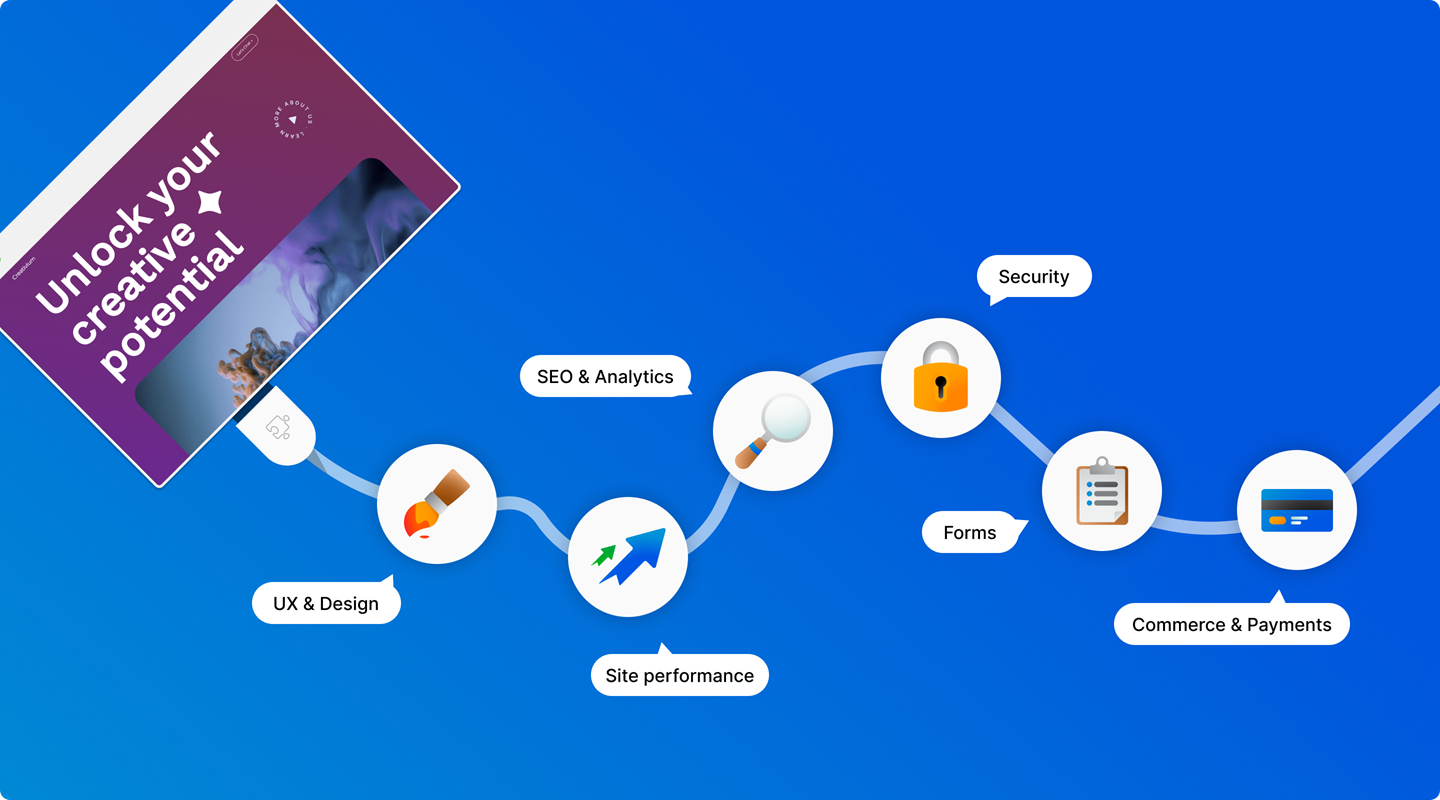
Our top recommended WordPress plugins for business (2026)
Prefer the short version? Here’s the quick list in full:
| # | Plugin | What it does | Key Strength | Best used for |
|---|---|---|---|---|
| 1 | Elementor | A visual page builder with drag-and-drop editing | Fast way to build full pages without code | Websites and landing pages without code |
| 2 | GenerateBlocks | Lightweight, block-based design tools | Keeps things fast and clean inside the editor | Quick sign-up, sales, or launch pages |
| 3 | SeedProd | A landing page builder for simpler, focused pages | Quick setup for single-purpose pages | Running a full online shop from your site |
| 4 | WooCommerce | Turns your WordPress site into a full-featured online shop | Most widely used way to sell online | Taking card payments for your shop |
| 5 | Stripe for WooCommerce | Add-on for Stripe payments in WooCommerce | Reliable card payments with simple setup | Simple, built-in checkout and payments |
| 6 | WooPayments | Another great built-in payment system for WooCommerce | Keeps payments inside your dashboard | Simple checkout flow |
| 7 | SureCart | All-in-one selling and checkout system outside of WooCommerce | Simpler setup than full shop builds | Selling digitial products or subscriptions |
| 8 | WPForms | An intuitive form builder for enquiries and sign-ups | Easy way to collect customer messages | Contact forms and lead capture |
| 9 | FluentCRM | A customer relationship manager (CRM) all inside your website dashboard. | Keeps customer data and emails together | Email campaigns, lists and follow-ups |
| 10 | Rank Math SEO | Popular SEO optimisation tool with more non-paid features than most | All-in-one SEO controls and guidance | Improving search ranking and visibility |
| 11 | Site Kit by Google | Connects Google analytics tools to your site | Direct access to real traffic data | Tracking traffic and search performance |
| 12 | Advanced Custom Fields | Lets you add extra fields to your pages, posts, and other content | More control over page structure | Custom layouts and structured content |
| 13 | PublishPress | Content planning and workflow tool | Helps organise publishing and schedules | Planning and scheduling of content |
| 14 | WP Rocket | Speed optimisation and caching tool | Makes sites load faster with little setup | Speeding up your site with caching |
| 15 | ShortPixel | Image compression tool | Smaller sized images that still look sharp | Optimising images for faster load times |
| 16 | AI Engine | AI tools for writing and chat | All-in-one AI features in one place | Writing content and adding AI chat tools |
| 17 | Elementor AI | AI built into the Elementor editor | Helps shape copy while designing pages | Creating and editing page content with AI |
☐ Build and design
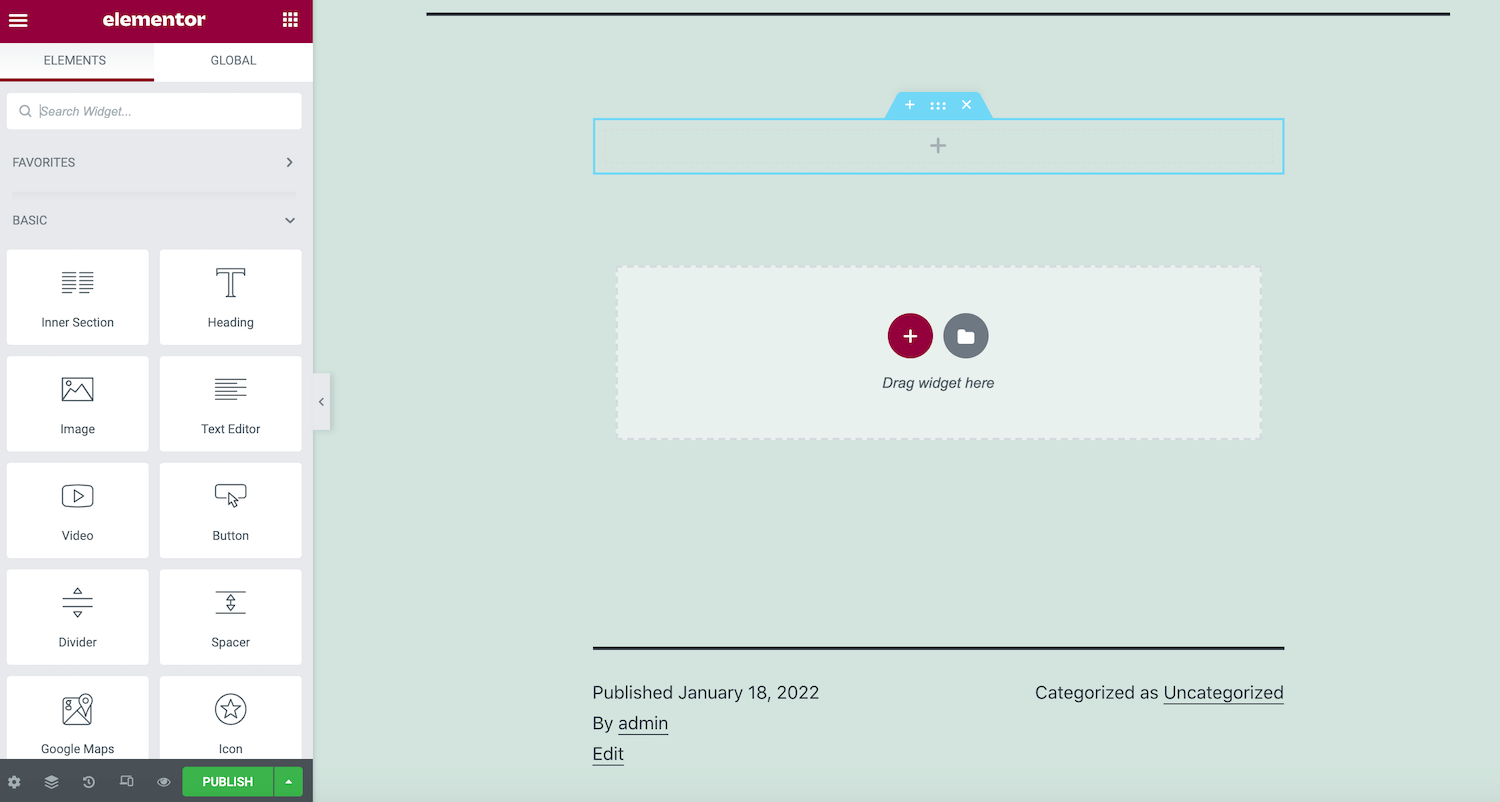
Elementor — visual page builder for full sites
Not new but still one of the most practical design plugins for business websites in 2026, Elementor is a powerful tool for building pages visually without needing to code. It offers a drag-and-drop workflow, a large library of widgets and templates, and responsive controls so your pages can look good on desktop and mobile.
For a small business, its main value is speed: you can create landing pages, service pages, and homepages quickly while keeping a polished, professional look. The free version covers a lot of ground, but the Pro version adds theme building, dynamic content, and WooCommerce design tools — worth it if you need custom headers, footers, or a more tailored shop experience.
It’s worth knowing that Elementor is a powerful tool, and with that comes a little weight. It’s not the lightest option, so if site speed is your top priority, GenerateBlocks (coming up) might be a better fit.
✓ Use Elementor if you want a powerful, flexible way to build and design your site visually — and don’t mind a feature-rich tool that does a lot more than the basics.
GenerateBlocks — lightweight layouts and clean design
GenerateBlocks adds flexible layout tools directly inside the WordPress block editor, rather than replacing it with a separate builder. It focuses on a small set of blocks (Container, Grid, Headline, and Button) giving you clean control over layout without loading a heavy system.
For businesses that care about performance and long-term stability, that lighter approach is a real advantage. It works particularly well when paired with a fast theme like GeneratePress, and suits anyone who wants precise, responsive layouts without the design bloat that heavier builders can bring.
✓ Use GenerateBlocks if you want clean, precise layouts inside the block editor without the weight of a full page builder.
SeedProd — landing pages and focused builds
SeedProd is built for one thing: creating simple, goal-led pages that get results. Coming soon screens, sign-up pages, sales pages — you build them visually by dragging elements into place, with the layout designed around what you want the page to do.
Where Elementor is built for full websites, SeedProd is built for focus. There’s less to configure, fewer distractions, and a clearer path from blank page to live. Use it when you need a clean, standalone page up quickly — a product launch, a lead capture page, or a holding page while your main site is being built.
✓ Use SeedProd if you need a clean, standalone page up quickly — a product launch, a lead capture page, or a holding page while your main site is being built.
☐ Ecommerce and selling
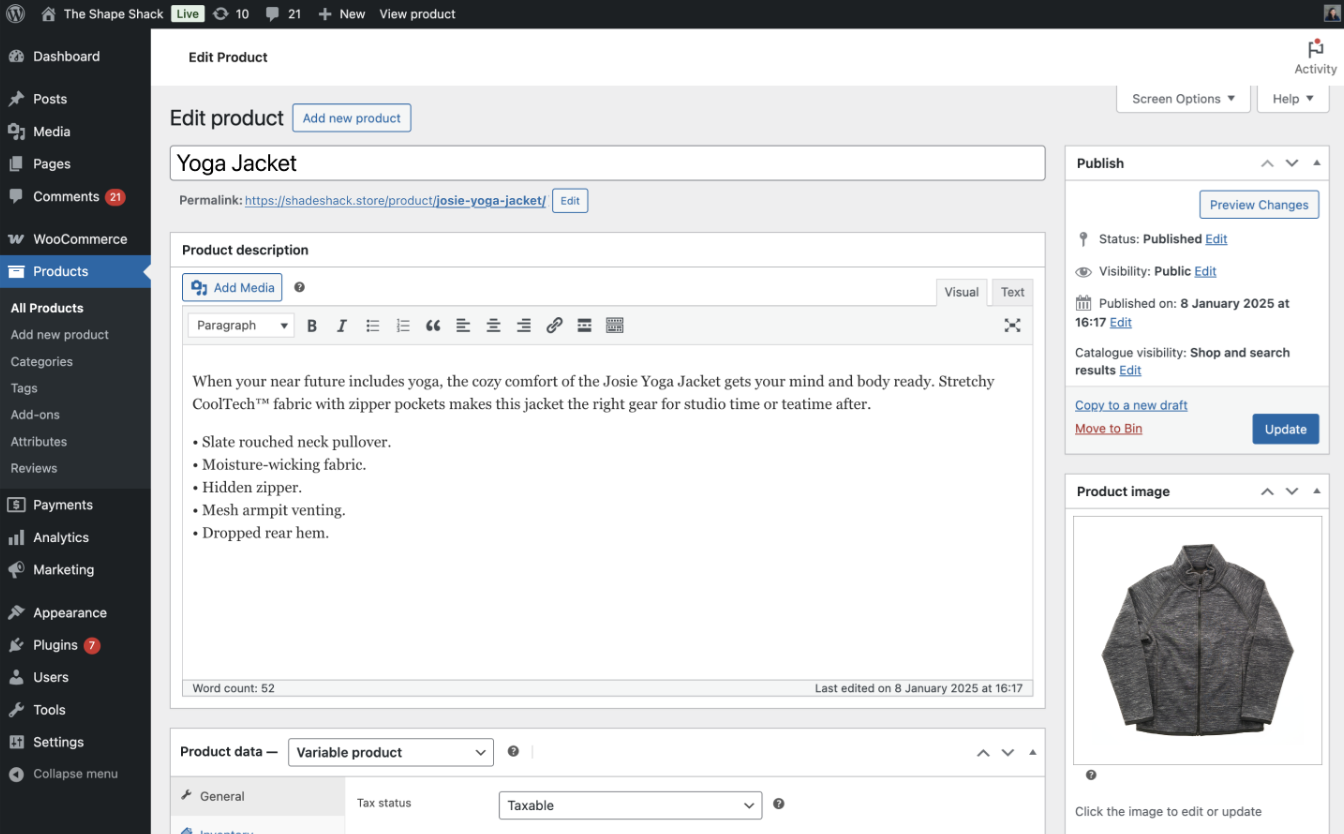
WooCommerce — full online shop in WordPress
WooCommerce is the most widely used way to turn a WordPress site into a shop. It lets you add products, take payments, manage orders, and handle delivery — all from inside your WordPress dashboard. Everything runs within your existing site, so your shop sits alongside your pages rather than living in a separate system.
It works for physical products, digital downloads, and services, and can be expanded with add-ons as your needs grow. For most small businesses, it’s the natural starting point for selling online.
✓ Use WooCommerce if you’re building a proper online store with multiple products and categories. If you’re selling just a handful of products or want something quicker to set up, SureCart (below) might suit you better.
Stripe for WooCommerce — card payments on your site
Once your shop is set up, you’ll need a way to take payments. There are two strong options for WooCommerce, and both work well — it really comes down to your setup.
Stripe for WooCommerce connects your store to Stripe, letting customers pay by card directly on your site without being redirected elsewhere. It’s widely supported, simple to configure, and a natural fit if you’re already using Stripe for other parts of your business.
WooPayments — built-in WooCommerce payments
WooPayments is built by the WooCommerce team, so it slots into your store with minimal fuss. It handles cards, digital wallets, and local payment methods, with everything managed inside your WordPress dashboard.
If you’re already a Stripe user, the Stripe plugin is the obvious choice. If you’d rather keep everything under one roof with less switching between platforms, WooPayments is the tidier option.
SureCart — simple selling and checkout
SureCart is worth considering if the full WooCommerce setup feels like more than you need. Rather than building out a complete shop, you create your products and point customers through a clean, built-in checkout flow — no extensive configuration required.
It handles physical goods, digital downloads, and subscriptions, using Stripe in the background to process payments. The result is a leaner, more straightforward selling setup that suits businesses where simplicity matters more than scale.
✓ Use SureCart if you’re selling a focused range of products or services and want to get up and running quickly without assembling a full eCommerce store.
See also: How to create an online shop with WordPress

☐ Forms and leads
WPForms — forms for enquiries and sign-ups
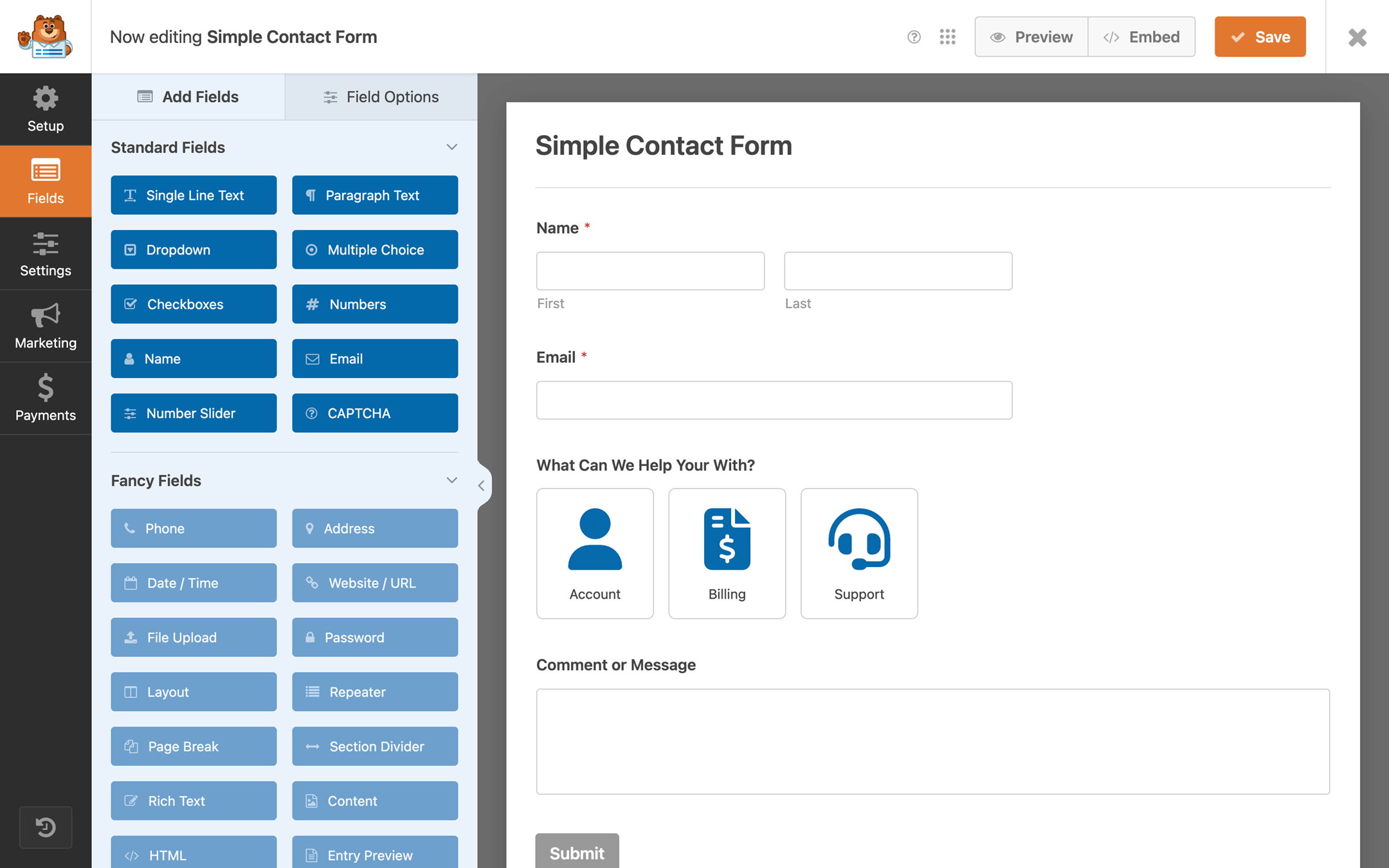
WPForms lets you build forms for your website quickly and without much technical effort. Contact forms, quote requests, booking forms, survey forms, or simple sign-up boxes — you drag fields into place, set up where responses get sent, and you’re done.
It includes spam protection built in, integrates with popular email tools, and handles conditional logic for more complex forms when you need it. For most small businesses, the free version covers the basics comfortably, with the paid version unlocking more advanced form types and integrations.
✓ Use WPForms if you need a reliable, flexible form on your site without touching any code.
FluentCRM — contacts and follow-ups
FluentCRM is a full contact management and email marketing tool that lives entirely inside your WordPress dashboard. It goes well beyond collecting form entries — you can store contacts, organise them into lists and segments, build automated email sequences, and track how people engage with your messages.
For a small business, the appeal is keeping everything in one place. Rather than paying for a separate email marketing platform and trying to connect it to your site, FluentCRM handles it all from within WordPress — and at a fraction of the cost of many standalone CRM tools.
✓ Use FluentCRM if you’re building an email list, running follow-up sequences, or want a simple CRM without adding another subscription to your stack.
☐ SEO and site insights
Rank Math SEO — optimise pages for search
Rank Math has become one of the most widely used SEO tools in WordPress, largely because it brings so much into one place without feeling heavy to use. Titles, meta descriptions, schema markup, XML sitemaps, and on-page suggestions all sit inside the editor — so you’re getting guidance as you write, not after the fact.
What makes it stand out from alternatives like Yoast is how much you get for free. Features that other SEO plugins lock behind a paid plan — keyword tracking, schema types, advanced redirects — come included in Rank Math’s free version, making it particularly good value for small businesses.
✓ Use Rank Math if you want a single, capable SEO tool that covers everything from basic setup to more advanced search optimisation, without needing multiple plugins or a premium subscription to get there.
Site Kit by Google — connect Google tools
Site Kit is Google’s own official plugin for WordPress, which is a big part of why it’s so widely trusted. It connects Search Console, Analytics, and other Google services directly to your dashboard, giving you a clear view of how people find your site and what they do when they get there.
The main appeal is convenience. Instead of logging into separate Google platforms to piece together your traffic and search data, it surfaces the key numbers inside WordPress where you’re already working. For most small businesses, that’s more than enough to stay on top of performance without overcomplicating things.
✓ Use Site Kit if you want straightforward access to your Google data without leaving your dashboard.
☐ Content and workflow
Advanced Custom Fields — build structured content
Advanced Custom Fields (ACF) is one of the most established and widely used plugins in the WordPress ecosystem. It lets you add custom fields to any page, post, or content type — things like repeatable content blocks, image galleries, structured data, dropdowns, and more — giving you far greater control over how your content is built and displayed.
Out of the box, WordPress gives you a title, a body, and not much else. ACF fills that gap, making it possible to create properly structured pages without relying on a page builder or hardcoding everything into a theme.
It’s worth being upfront: ACF is more of a developer-friendly tool than a beginner one. If you’re working with a web developer or agency, it’s likely already on their radar. If you’re managing your own site, it’s still useful but comes with a slightly steeper learning curve than most plugins on this list.
✓ Use ACF if you need structured, repeatable content across your site and want more control over page layout than WordPress gives you by default.
PublishPress — plan and manage your content
PublishPress is a content planning and workflow tool that helps teams organise what’s being written, who’s writing it, and when it’s going live. Editorial calendars, custom post statuses, and contributor management all sit in one place, giving you a clearer picture of your content pipeline at any point.
For a solo site owner it may be more than you need, but for anyone managing a blog, a content team, or a regular publishing schedule, it brings a level of organisation that WordPress doesn’t offer on its own.
✓ Use PublishPress if you’re running a content-heavy site with more than one person involved in writing or publishing.
☐ Media and content
WP Rocket — speed up page loading
WP Rocket is one of the most popular performance plugins in WordPress, and for good reason. It handles caching, file minification, lazy loading, and a range of other speed improvements behind the scenes — without needing much technical knowledge to set up or maintain.
Where a lot of performance tools require careful configuration to get right, WP Rocket works well straight out of the box. A busy homepage packed with images and content can load noticeably faster for visitors, particularly on slower mobile connections where every second has a real impact on whether someone stays or leaves.
It’s a premium plugin with no free version, but for most businesses it pays for itself quickly in better load times and a smoother experience for visitors.
✓ Use WP Rocket if your site is feeling slow and you want a reliable, low-maintenance fix that doesn’t require you to dig into technical settings.
ShortPixel — compress and optimise images
Images are one of the most common causes of slow-loading pages, and ShortPixel is one of the tidiest ways to fix that. It automatically compresses image file sizes as you upload them, keeping your pages light without making your visuals look any worse for it.
Among a crowded field of image optimisation plugins, ShortPixel stands out for its balance of strong compression, good quality retention, and a simple setup that largely takes care of itself. It also works on your existing image library, so you’re not starting from scratch.
✓ Use ShortPixel if you’re uploading a lot of images and want to keep your site fast without manually optimising every file.
☐ AI and new
AI Engine — AI tools in one place
AI Engine is one of the more popular ways to bring AI features into WordPress, and its appeal is straightforward: it pulls a range of tools into one place rather than making you bolt on several separate plugins. Content generation, chatbots, and prompt-based writing helpers all sit inside your dashboard, so you can use AI where your content already lives.
It connects to models like OpenAI and gives you a reasonable amount of control over how those tools behave — useful if you want to customise how AI assists your workflow rather than just accepting whatever a tool gives you by default.
✓ Use AI Engine if you want a flexible, all-in-one AI toolkit inside WordPress without jumping between platforms or subscriptions.
Elementor AI — AI inside page design
Elementor AI is built directly into the Elementor Pro editor, which makes it a little different from the other tools here — it’s not a standalone plugin but an integrated feature you get as part of Elementor Pro. That integration is also what makes it useful: rather than switching between a writing tool and your page builder, you can generate text, get layout suggestions, and produce small snippets of code without leaving the editor.
It’s not a replacement for a dedicated AI writing tool, but as a built-in assistant while you’re actively designing pages, it removes a lot of the back-and-forth that comes with building and writing separately.
✓ Use Elementor AI if you’re already on Elementor Pro and want AI assistance woven into your design workflow rather than bolted on elsewhere.
If you want to go a bit deeper, take a look at our guide: 17 Top New AI Plugins for WordPress
Managed vs Self-Managed Hosting?
The plugins you choose matter — but so does the hosting that powers them. If you’re running a WordPress site, you generally have two options.
123 Reg Managed Hosting for WordPress takes care of the technical side for you. Updates, security, and performance are handled in the background, so you can focus on building your site and running your business rather than maintaining it.
123 Reg Web Hosting gives you more control over your setup, but you’ll be responsible for installing WordPress, keeping it updated, and managing it yourself.
For most small businesses, managed hosting is the easier and more practical choice, especially if you’d rather spend your time on your business than on the technical upkeep of your site.
Not sure which is right for you? Read our guide: Managed vs Self-Managed Hosting – Which Works Best for your Business?
Wrap up
WordPress plugins give you so much flexibility. But the real key is keeping things simple and only using what you actually need. A small, well-chosen setup will usually go further than a long list of tools you don’t use.
If you’d rather spend less time on the technical side and more time growing your brand, 123 Reg Managed Hosting for WordPress takes care of updates, security, and performance in the background, so you can focus on running your business and building your website.

FAQ
What are WordPress plugins?
WordPress plugins are small add-ons that give your website extra features. Think of WordPress as a basic house, and plugins as the furniture you bring in to make it work for you. One might add a contact form, another might help you sell products, and another might speed things up a bit.
Do WordPress plugins slow down your website?
They can, but it depends on what you install and how many you use. Well-built plugins have little impact on speed, while too many or poorly coded ones can make a site feel slower over time.
Can I delete WordPress plugins I’m not using?
Yes — and it’s usually a good idea. Deactivating and removing unused plugins helps keep your site cleaner, easier to manage, and reduces anything unnecessary running in the background.
What’s the difference between a plugin and a theme?
A theme controls how your website looks, while a plugin adds extra features and functions. In simple terms, the theme is the design, and plugins are the tools that make your site do more things.
How do I install WordPress plugins?
Most plugins are installed straight from your WordPress dashboard. You search for the one you want, click install, then activate it. After that, it usually appears as a new menu or setting on your site, ready to use.
How many WordPress plugins do I really need?
There is no fixed number, which is slightly annoying but also quite freeing. Some sites run well on a handful, others use more. The main idea is to only keep what you actually need, rather than adding plugins for the sake of it.
What are freemium WordPress plugins?
Freemium plugins are a bit like a taster menu. You get a free version with basic features, and if you need more, there is a paid upgrade. The free version often does the job to start with, which is why many people stick with it until their site grows.