
One of the world’s leading eCommerce platforms, WooCommerce is a free WordPress plugin that gives your website everything it needs to become an online shop. You can add products, accept payments and manage orders, all from your WordPress dashboard.
This beginner’s guide covers the basics for getting started. You’ll start by setting up your store, including the essentials like currency and shipping options. From there you’ll learn how to add products with clear descriptions, images and prices, and how to set up payments so customers can check out easily and securely.
Finally, we’ll look at some simple ways to attract customers and get your shop noticed. By the end, you’ll know how to use WooCommerce’s main features and get your shop ready for business.
Key Takeaways — Start a shop with WooCommerce
- ☑︎ It’s free and flexible. WooCommerce gives you everything you need to run an online shop, from product pages to checkout and order tracking.
- ☑︎ Sell almost anything. Physical products and digital downloads work out of the box. You can add extensions to sell bookings and subscriptions.
- ☑︎ You own your shop. WooCommerce takes no commission on sales. Payment provider fees may apply.
- ☑︎ Add features as you grow. Bring in extra tools whenever you need them.
- ☑︎ Choose hosting built for WordPress. 123 Reg Managed WordPress Hosting helps keep your shop fast, secure and backed up, so you can focus on your customers.
What is WooCommerce?
WooCommerce is a fantastic plugin that adds online shop functionality to WordPress websites.
You can use it to sell physical products, digital downloads or services. With the right extensions, you can also offer bookings, subscriptions and more.
While WordPress provides the foundation for your site, WooCommerce gives you the tools to run your shop, from product pages and payments to orders and delivery.
In plain English: WordPress is the app that powers your website, while Woo is the add-on that lets you run a business from it.
It’s free, open-source and hugely customisable.
WooCommerce in numbers (2026):
● Powers around 30.5% of all ecommerce
● Over 4.1 million live installations
● Built on WordPress, which runs 41.5% of the web
● 1,500+ products in the official Marketplace, with more added regularly
● 90,000+ developers, creatives and builders supporting merchants worldwide
● 350+ contributors developing the core code
With a large community of online sellers behind it, plenty of help is available, including official documentation and guides and community forums where you can ask questions and share advice.
Why choose WooCommerce?
If you want to sell online without giving up control of your website, WooCommerce gives you several advantages.
✓ Make your shop look and feel like you.
Choose themes, layouts and features that reflect your brand and the way you want to sell.
✓ Stay in the driving seat.
Manage your shop, content and products without being tied to a closed platform.
✓ Keep more of what you earn.
WooCommerce doesn’t take a cut of each sale, though payment processing fees still apply.
✓ Add new features when you’re ready.
Extensions for bookings, subscriptions, marketing and more are there when your business needs them.
✓ Start with the basics, for free.
The core plugin costs nothing, so you can launch simply and expand over time.
All these factors make WooCommerce a strong option even for smaller businesses. Start with the essentials, make the shop your own and add more as you grow.

Learn more about 123 Reg Managed WordPress Hosting
What are the downsides?
The flexibility of WooCommerce does demand just a little more time and technical know-how than an all-in-one site builder. If you’re running the business yourself, think about how much time you can realistically spend managing your shop.
Note that payment processing fees also apply on every sale, whichever platform you use. WooCommerce doesn’t add its own commission, but your payment provider will.
If all you need is a portfolio, a blog or a basic business website, 123 Reg Website Builder could be a better fit. With a simpler drag-and-drop editor, you can have a professional site online in minutes.
See also: Website Builder vs Web Hosting — Which Works Best for Your Business?
Building blocks: WordPress, WooCommerce, and Theme
Think of a WooCommerce shop as built from three parts, each with its own job:
1. WordPress runs your website. It’s where you create pages, publish content and manage everything behind the scenes.
2. WooCommerce makes it a shop. The free plugin gives you product pages, a shopping cart, checkout and order management.
3. Your theme sets the look. It controls your layout, colours and fonts, and you can switch it later without losing your products. Most modern themes work with WooCommerce, and the official marketplace has themes designed for it specifically.
How much does WooCommerce cost?
The core software? It’s free
WooCommerce is open-source and free to download and use, just like WordPress. There’s no commission on your sales either.
The core plugin stays free, so you only pay for the extras your shop needs.
What you’ll pay for
You’ll need hosting to get your site online, a domain name and ideally a professional email address that matches that domain. Managed WordPress Hosting plans include all three, with most domains free for the first year.
Premium themes and add-ons are optional extras in WooCommerce. Just start with the free options and add more as your shop grows. Payment providers also charge a fee on each sale, and this may vary by product and provider.
How to set up a WooCommerce shop
First things first: Install the plugin
You can install Woo just like any other WordPress plugin, directly from your WordPress dashboard.
Sign in to your WordPress dashboard and look at the menu on the left. Select Plugins, then Add New Plugin to open the WordPress plugin directory. Search for “WooCommerce”.
Once you’ve found it, click Install Now and wait for the installation to finish. Then click Activate to enable Woo on your website.

For more help, see our Guide to Installing WooCommerce and our Beginner’s Guide Blog on plugins.
Then let the wizard guide you
With WooCommerce is installed and activated, you’ll immediately be taken to see the setup wizard. Welcome to Woo!
The onboarding wizard asks a few simple questions about your business and website, like your store name, what you plan to sell, your store location and your contact email.
You’ll be asked a to fill in your shop address and location, and that matters because WooCommerce uses them for shipping, tax and the regions you sell to. Your business address is usually where you’re based as a seller, and many tax and shipping settings use it to work out rates.
The wizard is there to help you get the essentials of your store in place, though — you can skip it for now and come back to it all later, if you prefer.
Say hello to the WooCommerce dashboard
Once the wizard has worked its initial magic, you’ll arrive at the Woo dashboard.
At the top you’ll see a list of suggested first tasks, such as adding your products, setting up payments, customising your store, choosing your shipping options, and more. You don’t have to tackle them in order.
Below that is a snapshot of your store, including orders, customers, coupons and reports.
The side panel on the left is where you’ll do most of your day-to-day work, so it’s worth knowing what each section is for:
☐ Home — showing your store at a glance, with quick links to orders, customers, coupons and reports.
☐ Products — where you add and manage what you sell.
☐ Payments — where you set up how customers pay you.
☐ Analytics — reports on how your store is performing.
☐ Marketing — various tools for promoting your shop and running offers.

Take a look at your essential shop pages
Every online shop needs a few key pages, and WooCommerce creates them for you automatically. Together, they take customers from browsing to ordering, then let them check on their purchase later.
The Shop page displays your products. The Cart shows what a customer has added before checkout, while the Checkout page is where they enter delivery details, choose a payment method and place their order. Finally, My Account lets customers view orders, manage addresses and update their details.
These pages are created as soon as you activate WooCommerce, but it’s worth checking each one is assigned correctly. Without a Cart and Checkout page, customers can’t complete a purchase.
Set your currency and sort your tax
You don’t strictly have to do this now, but it’s best to get it done before you add any products. Your prices will be entered and displayed in whichever currency you choose here, and changing it later won’t convert prices you’ve already set.
Choose the currency you want customers to see and pay in. You can set it alongside your business address and selling regions in WooCommerce’s general settings.
Tax can wait until you’re ready to sell, and you don’t need to be a registered business to build your shop. When you are ready, WooCommerce lets you switch on tax calculations, set rates manually, or use an automated tax partner where one’s available.
For more, you can always check on WooCommerce’s own Getting started documentation
Design your shop
First impressions count, and shoppers decide in seconds whether your shop is worth their time.
There are two main places to find a theme. You can browse thousands of free themes under Appearance > Themes in your WordPress dashboard, or pick one designed specifically for online shops from the official WooCommerce themes marketplace.
Either way, make sure it’s compatible with WooCommerce, so your product pages, basket and checkout look right from the start.
Pick a theme that works for your brand
You can start with a free WordPress theme, and many work well with WooCommerce. But themes made especially for WooCommerce tend to offer tighter integration, with product pages, cart and checkout designed to work together from the start.
Some of the more feature-rich and dynamic themes are paid, so weigh up the pricing before you commit.

Choose a design that matches your brand and makes browsing easy, with clear menus, bold product images. Many customers will shop on their phones, so test your shop on different devices and browsers.
Good hosting also affects loading speed. hosting plays a big part on loading speed. 123 Reg Managed WordPress Hosting is built for performance, so your pages load quickly and your shop copes with busy periods.
Add your products
Adding products is where your shop starts to take shape
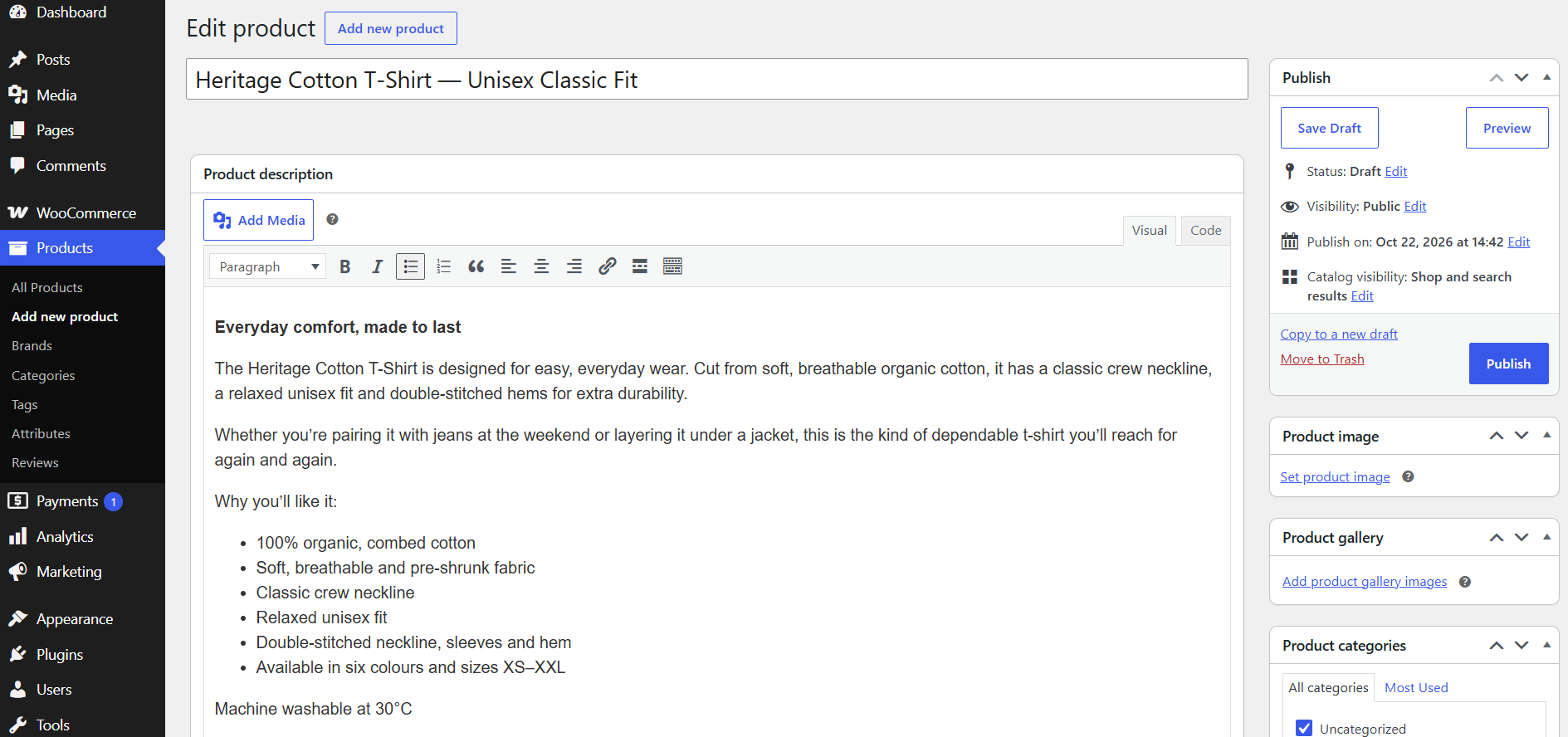
Go to Products > Add New Product and you’ll see the edit screen, where you add each product’s name, price, description, images and stock details.
In the Product data box, choose a product type. For most shops, that’s one of two:
Simple product: a single item with no choices, like a mug in one design.
Variable product: an item with options, like our T-shirt in several sizes and colours. Each combination can have its own price, image and stock level.
WooCommerce also offers grouped products and external or affiliate products, but if you’re selling your own physical goods, simple or variable is the best place to start.
Write titles and descriptions that sell
Keep your title clear and specific, and make your description answer the questions a shopper is likely to have.
Work in the search terms your customers use. “Organic cotton T-shirt for men” will do more for you than “Cotton T-shirt”, but write for people first and don’t cram in keywords.
Show it off with great photos
Use clear, well-lit images that show the product accurately, with extra angles and close-ups in the gallery. WooCommerce recommends at least 800 x 800 pixels so they look sharp, but keep file sizes small so pages load quickly on mobile.
Add alt text to every image, such as “Blue organic cotton T-shirt, front view”. It helps screen reader users and search engines.
Keep things tidy with categories and tags
Categories are for the main groups in your shop (like “Men’s T-shirts” or “Accessories”). You can add subcategories, like “Short sleeve”.
Tags are for details that cut across products, such as “organic cotton” or “gift ideas”. They don’t need a hierarchy.
Accept payments
To take payments, you’ll connect WooCommerce to a payment gateway.
That’s the service that’s going to securely processes each payment at checkout — whether customers pay by card, digital wallet or a service like PayPal.
Which payment methods should you offer?
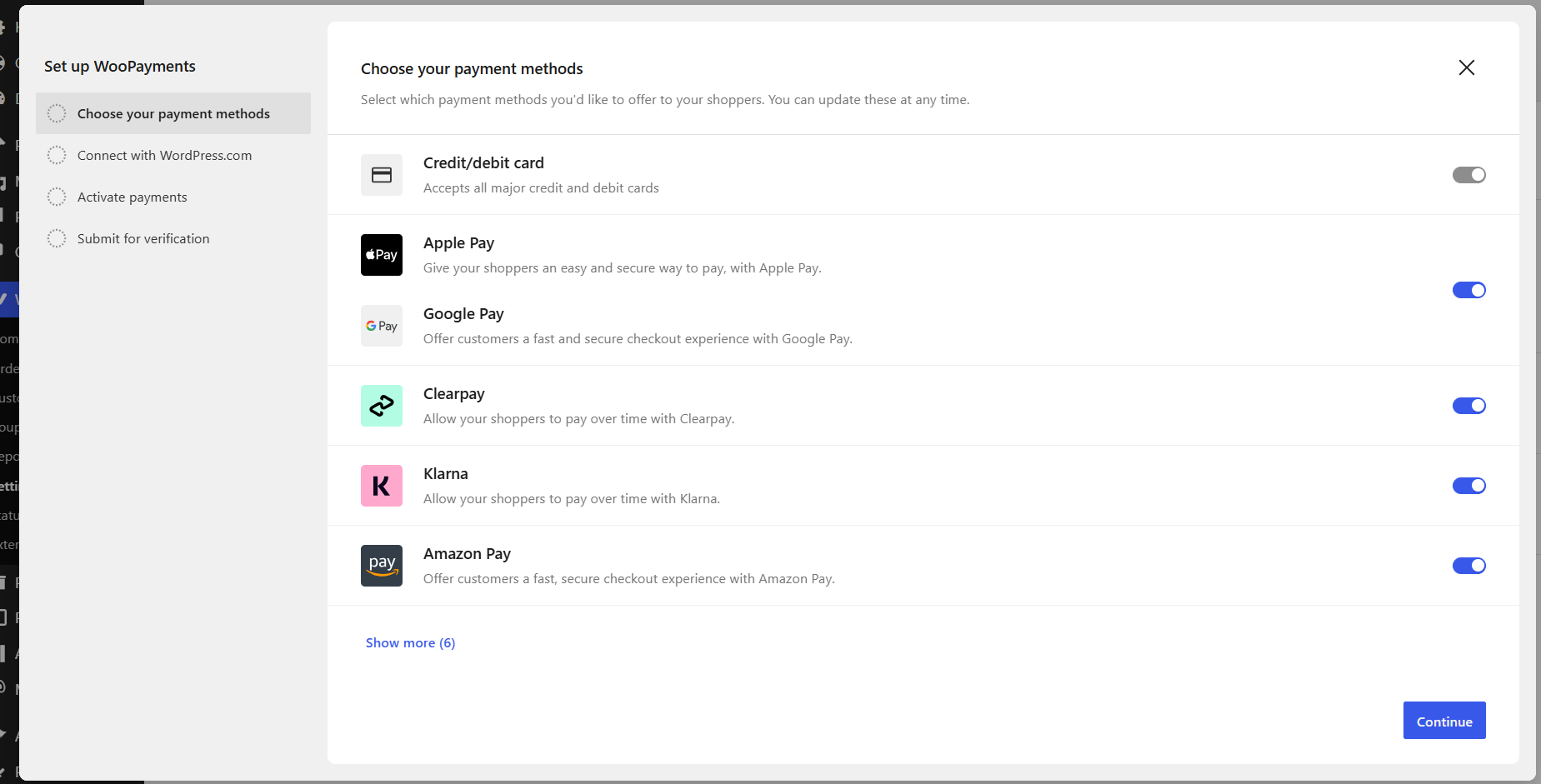
Your payment options can make a real difference at checkout. Many customers expect to pay by debit or credit card, while others prefer digital wallets like Apple Pay and Google Pay, or services like PayPal.
Familiar options make checkout feel quick and easy. Someone on their phone, for example, will often tap Apple Pay or Google Pay rather than type in their card details.
You don’t need to offer everything from day one. Start with what suits your customers and business, then add more as your shop grows.
Which payment gateways can UK businesses use?
UK businesses can choose from several payment gateways, including:
WooPayments: WooCommerce’s own payment solution, supporting cards, Apple Pay, Google Pay and other options.
Stripe: A popular payment processor accepting cards and other payment methods.
PayPal: Lets customers pay using their PayPal account or, where available, a card.
Fees, payment methods and availability vary by provider. Before choosing, check transaction fees, payout schedules and whether the gateway supports your business and the currencies you sell in.
Test your checkout before you launch
Before you go live, walk through the buying journey as a customer would. Add a product to the basket, head through checkout and place an order to make sure everything works.
Most gateways have a test or sandbox mode, so you can process a test payment without charging a real card. WooPayments, for example, has a test mode you can switch on from the Payments settings before placing a test order.
Business registration
You don’t need to register a business before you start building your shop. But depending on how you plan to trade and how much you earn, you may need to register with HMRC or set up a limited company. Not sure which route is right for you? Our guide to choosing between a sole trader and a limited company explains the differences.
If you’re a UK business, it’s also worth checking if you need to register for VAT before you start selling. This depends on your taxable turnover and circumstances, so check the latest guidance from HMRC if you’re unsure. WooCommerce’s tax documentation explains how to set up tax rates, including VAT for digital goods.
Arrange shipping and delivery
If you’re selling physical products, you’ll need to decide how orders reach your customers. In WooCommerce, that means setting up shipping zones, choosing your delivery options and putting a simple process in place for packing and sending orders.
Only selling digital products? You may not need shipping at all. Virtual and downloadable products aren’t posted, so WooCommerce hides the shipping fields for them unless you also sell a physical version.
Set up shipping zones and rates
Shipping zones define where you deliver, whether that’s the UK, Europe or the rest of the world, and which delivery options and prices customers see at checkout.
For example, you could offer standard delivery in the UK and charge more for Europe. If a customer’s address falls outside your zones, they won’t see any delivery options and can’t complete their order.
WooCommerce includes three built-in shipping methods. Flat rate charges a fixed cost per order, item or shipping class. Free shipping removes the delivery charge for everyone or when conditions are met, such as a minimum spend. Local pickup lets customers collect their orders themselves.
To set these up, go to WooCommerce > Settings > Shipping > Shipping zones. For more complex pricing based on factors like weight or order value, consider a table rate shipping extension.
Collection and delivery
If you have a physical shop, workshop or local customer base, offering collection can be a real crowd-pleaser. Local pickup lets customers collect their orders instead of having them delivered.
Add it to a shipping zone, give it a clear name like “Collect from our London shop” and decide whether to charge a fee. Customers in that zone will then see the option at checkout.
For local delivery, set up a flat rate or free shipping for a nearby area, such as a specific town or postcode region. If you need delivery slots, specific delivery days or more advanced options, you can add an extension.
Plan how orders get out the door
With delivery options are sorted, think about how you’ll get orders to customers. You’ll need to decide how you’ll package items, how soon you’ll dispatch them, how long delivery should take and whether you’ll offer tracking.
Compare couriers on price, speed and reliability, including the destinations you need to cover. Royal Mail is a familiar choice for UK businesses, with services for letters and parcels.
You don’t need to connect a courier straight away, but make sure your delivery promises are realistic. Clear information at checkout helps customers know what to expect and cuts down on questions later.
Promote your shop
Your online business only works if customers can find it. Once your shop is ready to take orders, it’s time to spread the word and give people a reason to visit.
There are plenty of ways to reach potential customers, from search engines and social media to email marketing. You don’t need to do everything at once. Start with one or two channels that work for your products and audience, and build from there.
Marketing channels for WooCommerce
WooCommerce’s Marketing section includes official extensions that connect your shop to platforms where customers already spend their time, including Google, TikTok, Snapchat, Reddit and Blaze Ads for Tumblr.
These integrations let you create product ads, connect your catalogue and track results without leaving your WordPress dashboard.
That makes it easier to see which channels are bringing shoppers to your store and where to focus your marketing efforts.

Help search engines find you
Give each product page a descriptive title, a useful description, relevant search terms, image alt text and a clear URL, so search engines understand what you sell and show your shop to the right people.
Getting found on Google can also mean setting up a Google Business Profile, and it’s worth reading how to get your business seen in AI Overviews.
Search Engine Optimisation (SEO) takes time and nothing guarantees a top spot, so think of it as a steady investment that builds as you add more good content.
See also: Local SEO in 10 — How Do I Get My Business Found Online?
Build relationships with email
Email lets you keep in touch with people who’ve already shown an interest. Send it from a professional email address, such as hello@yourshop.co.uk, rather than a free webmail account. It looks more trustworthy, helps your messages feel genuine, and is included with 123 Reg Managed WordPress Hosting, so there’s nothing extra to buy.
Newsletters, product updates and promotions give them a reason to come back, and encouraging shoppers to create a customer account at checkout makes repeat purchases quicker for them too.

Learn more about 123 Reg Professional Email
Show up where shoppers already are
Social media and Google Shopping can put your products in front of new customers. Start with one or two that fit your business and budget.
If you’re considering paid promotion, our beginner’s guide to Google Ads is a good place to begin.
Let happy customers do the talking
Genuine reviews help shoppers make informed choices and build confidence in your shop. They’re not a guaranteed sales boost, but they’re one of the most trusted ways to show your shop is the real deal.
See also: Social Media and Your Website — Why Small Businesses Need Both to Grow
Wrap up
Building a WooCommerce shop is easier than it looks. Everything starts with WordPress hosting and a domain name, and the WooCommerce plugin and your theme sit on top of that. Once the foundations are in place you can add products, connect payments, and test your checkout at your own pace. Customers come next, and there’s no rush to do everything at once.

WooCommerce FAQ
Can I add WooCommerce to an existing WordPress website?
Yes, and that’s the idea! You can install it like any other plugin, and it’ll sit alongside your current pages. Just check your theme works well with it, then review your product pages and checkout.
Is WooCommerce good for beginners?
Yes, plenty of people set up and run their own shop, and the setup wizard guides you through the basics. That said, it takes more technical know-how than a drag-and-drop tool like Website Builder, so expect a bit of a learning curve.
If WooCommerce is free, why do I need hosting?
The plugin is free, but your shop still needs somewhere to live online, and that’s what hosting provides. It keeps your shop available to customers and affects how fast it loads. With 123 Reg Managed WordPress Hosting, WordPress comes pre-installed and ready to go.
How many products can I sell with WooCommerce?
WooCommerce doesn’t set a limit, so you can start small and add more as you grow. If your catalogue gets big, good hosting will keep your shop running.
Can I sell products internationally with WooCommerce?
Yes, you can sell to customers in other countries by adding shipping zones for each region and choosing the currency you want to sell in. You’ll need to check case-by-case on the rules for taxes and shipping for each destination before you open up to new markets.
What costs should you budget for?
The essentials to budget for are the hosting, a domain name and a professional email address — which are all included with Managed WordPress Hosting. After that, premium themes and certain add-ons are optional extras, and payment providers will generally charge a small fee on each sale.
Does your shop need a cookie consent notice?
Probably, if your shop uses cookies for things like analytics or advertising, as UK rules generally require you to ask for consent first. What applies depends on the tools you use, so check the latest guidance from the ICO.