

Having a website matters. It’s your hardest-working member of staff — available around the clock and often the first thing a potential customer sees.
123 Reg Website Builder is built for businesses that want to get online without the technical headaches. No designers or developers required. Just your business, your ideas, and a bit of your time.
This guide walks you through the whole process, step by step.
Key takeaways
- ☑︎ 123 Reg Website Builder lets you create and edit your site visually so you can focus on running your business.
- ☑︎ Start with a professional, mobile-ready template and make it your own as you go.
- ☑︎ Annual plans include a free domain for the first year, ready to go live when you publish.
- ☑︎ Preview your site as you build, checking how it looks on both desktop and mobile before you publish.
- ☑︎ Use built-in SEO tools and connect your social media so customers can find you online and follow your updates.
What is Website Builder?
The simplest way to get your business online
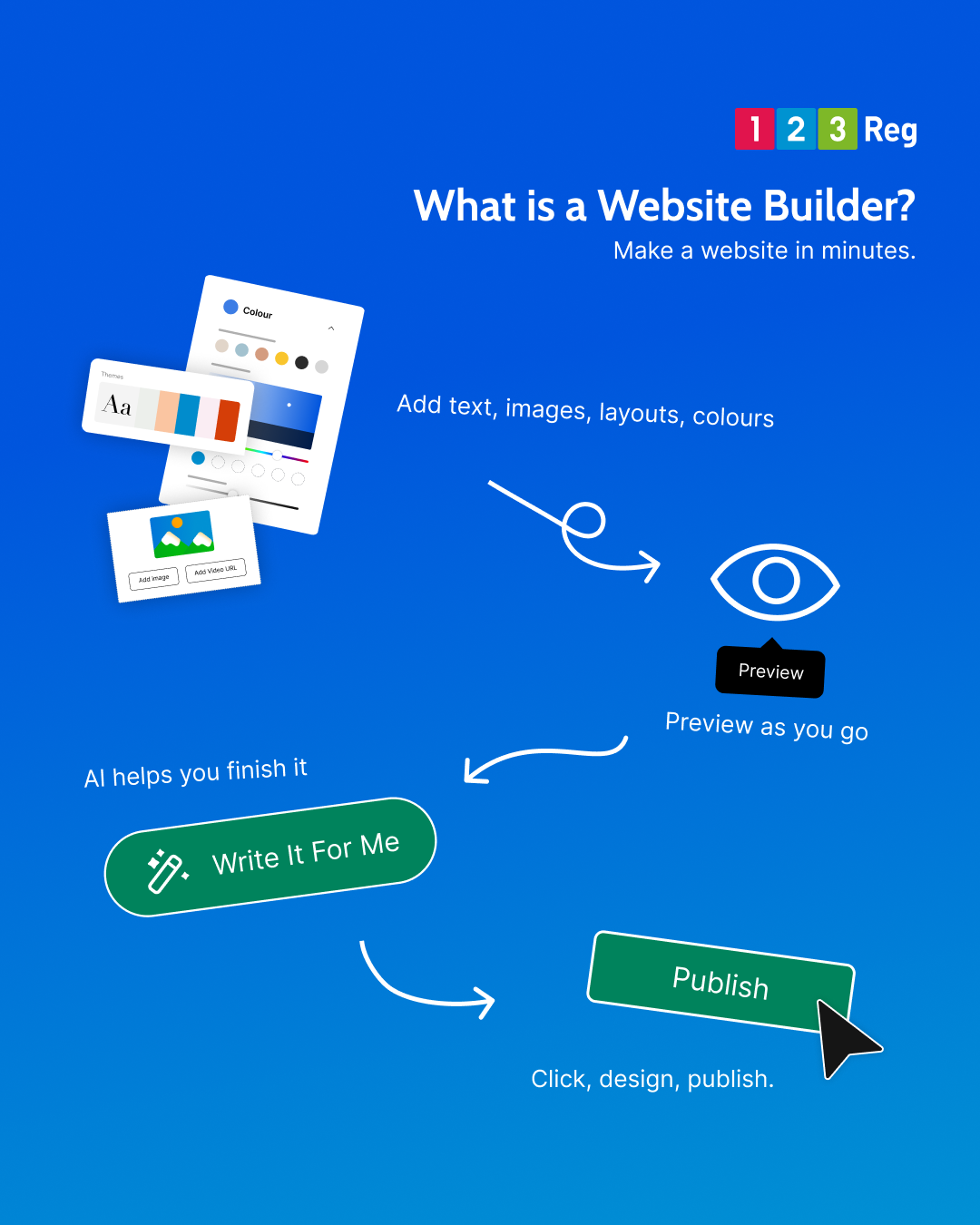
Website Builder is 123 Reg’s own tool for creating a professional website from scratch.
There’s no code to write and no complicated settings to wade through. If you’re comfortable using a smartphone or sending an email, you’ve got everything you need to build a website with Website Builder.
Just click into any section, type your words, swap in your images, and watch it update instantly. What you see is exactly what your customers will see.
Built for businesses like yours
Website Builder brings everything together in one place — pages, contact forms, online store options, booking tools, and more — all designed to help you get online and grow at your own pace.
Whether you’re:
✓ Running a small or medium-sized business
✓ Starting a side hustle or freelance career
✓ Building a website for the very first time
And if your business grows, Website Builder grows with you. You can upgrade at any time for more advanced features, right up to Online Store Builder for full eCommerce features like credit card payments and stock control.
What you’ll be able to do by the end of this guide
You’ll have a live website with your business name on it, a domain address you’re proud of, and the confidence to keep it updated as your business grows.
We’ll take it one step at a time.
See Website Builder in action
Watch our short video to see how to set up Website Builder, choose your starting point and begin building your site.
Don’t forget your free domain!
You’ll need a domain name before you start building. It’s your website’s address (like your-big-idea.co.uk) and how people find and connect with you online.
With an annual Website Builder plan, your domain’s free for the first year. Add your domain to your basket together at checkout, and it’ll connect to your site automatically when you publish.
See also: How to Choose the Best Domain Ending in 2026
No Website Builder yet? Take a look at the plans…
| Personal | Business | Business Plus | Online Store | |
|---|---|---|---|---|
| Best for | Simple sites, blogs, or personal projects | Building visibility and showcasing your business professionally | Growing businesses that want to engage customers and manage bookings | Selling products online with a complete ecommerce setup |
| Website tools | Ready-made templates and a mobile-ready site to get online fast. | Built-in SEO tools to help you rank on Google | SEO tools, plus social media integration and online booking. | Full ecommerce tools to manage products, stock, and delivery |
| 1 professional email address (1GB storage) | 2 professional emails | 3 professional emails | 5 professional emails | |
| Marketing tools | Blogging tools to share updates and grow your audience | Improved search visibility to attract more visitors | Social sharing tools to stay active and connected | Promote products with SEO, social sharing, and offers |
| Selling & payments | PayPal payments via email | PayPal Buy Now / Donate button | Buy Now / Donate plus booking appointments | Full online store with checkout, stock control, and shipping |
| All plans include | Free domain for the first year, professional email, mobile-ready templates, blogging tools, and an SSL Certificate. | |||
| Get started |
||||
1. Getting started with Website Builder
Sign in or create your 123 Reg account
Once you’ve got your plan, just sign in and you’re good to go. If you don’t have a plan yet, that’s fine too. You can create a free 123 Reg account first, then add Website Builder whenever you’re ready. Signing up takes no time at all, just an email address and a password.
Open Website Builder from your products
Find Websites + Marketing in your list of products. Next to your Website Builder plan, you’ll see a button. This will take you straight into the editor where all the building happens.
Note that the first time round it’ll say Set up, and after that it’ll say Manage instead.
2. A few questions about your business…
Clicking Set up won’t land you on a blank editor. Instead, Website Builder asks a few questions to get things started.
First up: what kind of business do you have? Choose from options like a hair salon, café, or restaurant, and Website Builder sets you up with a recommended template plus starter images and content already in place. Nothing’s locked in, so you can change your business type, template, or content later.
Next, give your business a name. This is just the name for your project, you can always change it later.
Then add your contact details: address (optional), phone number, and email. Website Builder drops these straight into the contact areas of your site, so you won’t need to add them manually later. You can also leave this blank for now and come back to it whenever you’re ready.
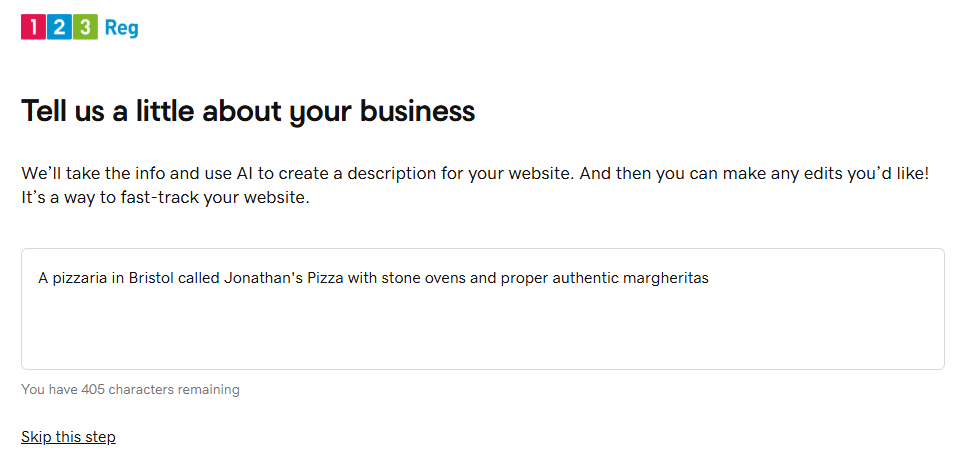
Tell us what you do
Finally, tell us a little about your business. Just a short description of what you do. Website Builder uses this to generate some starter copy for your site, which you can edit anytime once it’s in place.
3. Welcome to the dashboard
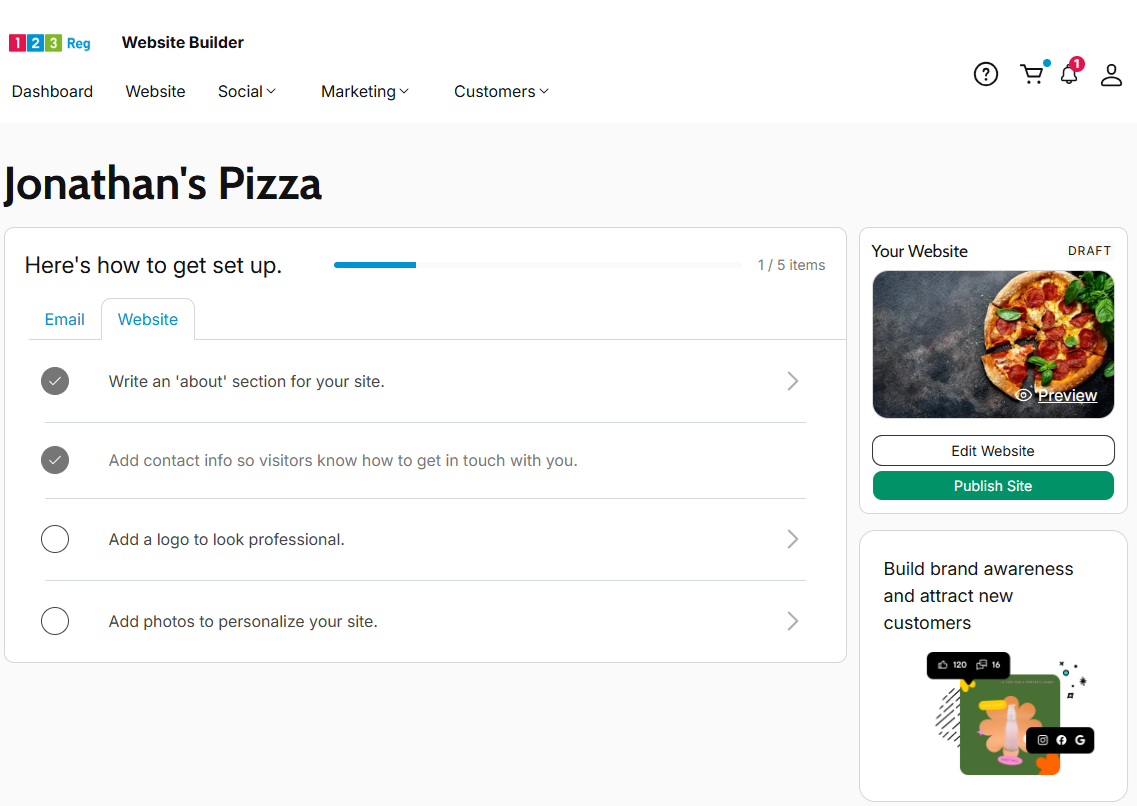
Once you’ve answered those questions, you’re taken straight into the Website Editor.
In 123 Reg’s Website Builder, the dashboard is a central hub for managing your whole site. From here you can:
✓ Edit your site, with intuitive controls for adding and editing pages and sections
✓ Track performance, including visitor numbers, sales, and search rankings
✓ Handle marketing, from social media posts to SEO and email tools
✓ Manage everything else, including e-commerce, bookings, and other 123 Reg products (depending on plan)
3. Getting to know the Editor
Go ahead and click Edit Website to go into Website Builder, where you can start editing your pages.
A head start, built for you
As you can see, Website Builder has already put together a theme, stock images, and starter copy, all pulled together from your answers.
It’s a real starting point, not just a placeholder. You might find that what you’ve got already does the job, or you can treat it as a foundation and start making it your own.
Either way, everything here can be edited or swapped out later, so nothing’s set in stone (other than stone-baked pizza in this instance…)

Finding your way around
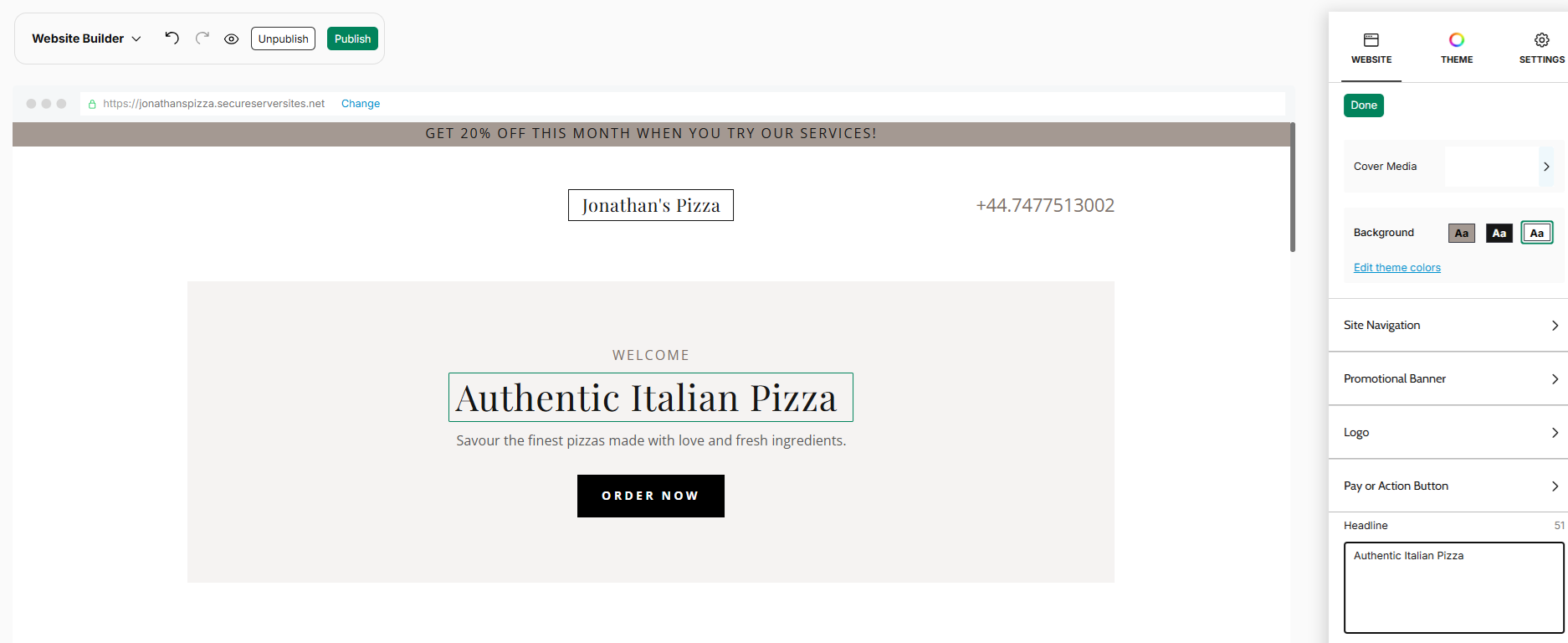
To the right, you’ll find the side panel, which is really where much of the day-to-day editing happens.
The main preview area shows your site as it stands, and you can click directly into any part of it to start editing.
Next to that, the side panel itself splits into three main tabs: Website, for your page navigation, Theme, for colours, fonts, and styles, and Settings, where you’ll find your business details, social links, and SEO options.
You’ll also spot a few extra tools and shortcuts dotted around, covering things like blogs, bookings, online store settings, and marketing tools, depending on your plan and business type.
Most changes come down to simply clicking what you want to edit, and everything saves automatically as you go.
Move or adjust sections
Each section on a page comes with a few simple controls worth knowing about:
☐ Add: a plus button lets you insert a new section wherever you’d like one, with a list of section types to choose from
☐ Reorder: up and down arrows let you move a section higher or lower on the page
☐ Duplicate or delete: the three dots give you the option to duplicate a section (handy for reusing something you’ve already set up) or remove it entirely
☐ Layout: many sections come with several layout styles to choose from, not just the default. For example, an image gallery might offer a grid, a slideshow, or a masonry-style layout, all just a click away
Add buttons like “Get in touch” or “Book now”
Buttons guide your visitors towards taking action. Place them where it makes sense, near the top of your home page, at the end of a services description, and on your contact page. Keep the language clear and direct: “Get a free quote”, “Book your appointment”, “Give us a call.”
4. Shape your site’s look
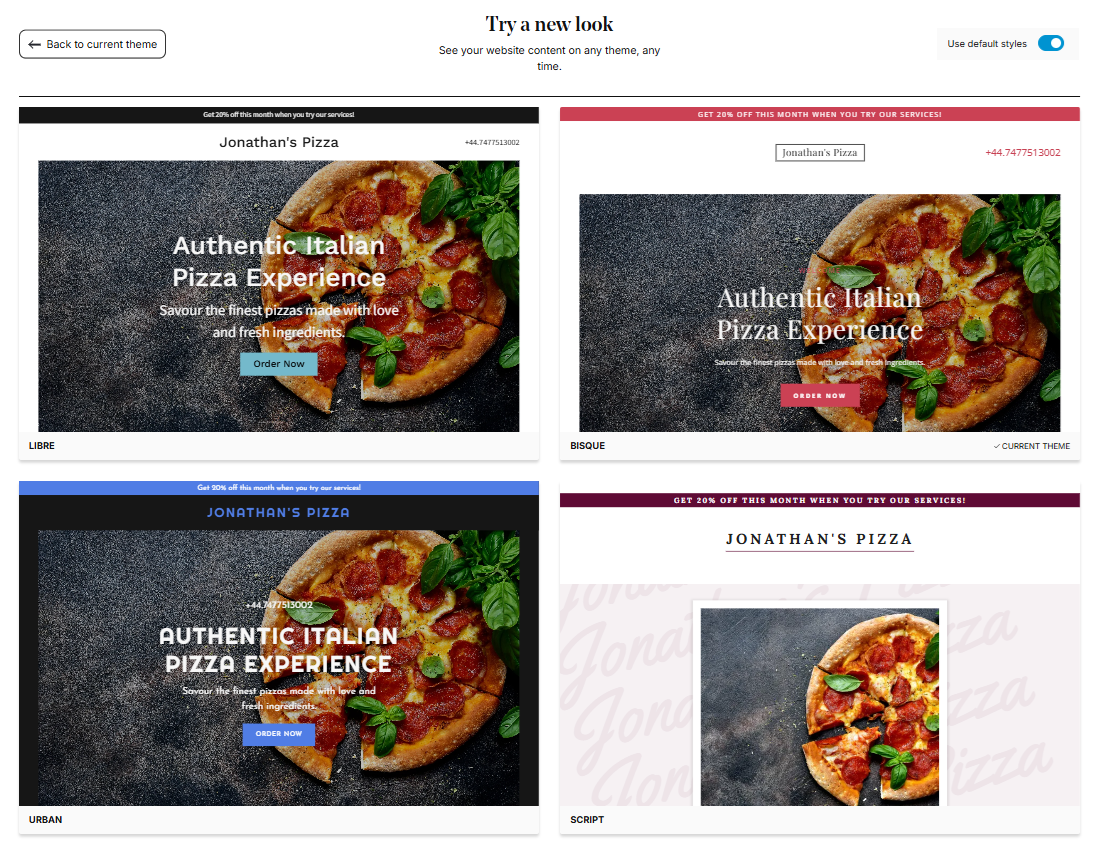
Since Website Builder already tailors a theme to the business type you chose during setup, you’re not starting from nothing. Even so, it’s worth clicking Browse Themes to see what else is available. Each one gives you a live preview, so you can see how it looks before committing to anything.
The template library is organised by business type, so whether you run a trades business, a café, a fitness studio, or a creative practice, you’ll find layouts built with your kind of site in mind, sections and all.
Once you’ve picked a theme, you can fine-tune it further. Choose from suggested colour palettes, enter a hex code if you’ve got brand colours already, or use the colour picker directly. You can also change the font to match the tone you’re going for. None of this is permanent, so feel free to switch things up later.
As you browse, it’s worth asking yourself:
☐ Does the layout feel clear and easy to navigate?
☐ Does the colour palette feel right for your business?
☐ Does it have the sections you’ll actually need?
5. Build your pages
Add essential business details
You’ll have already added your business name and a short description during setup, but this is a good point to expand on it if needed. A couple of sentences covering what you do, who you help, and where you’re based works well.
Next, add your contact details if you haven’t already: email, phone number, and location or service area. Once added, Website Builder automatically displays these across your site, including your header, footer, and contact page.
You can also upload a logo and choose colours and fonts that match your brand, which then carry through consistently across your whole site. No logo yet? Don’t worry, you can add one later and carry on building in the meantime.
Home page: a simple intro that highlights what you do
Your home page is usually the first thing visitors see, so keep it focused: a clear headline that says what you do, a short description, a call to action like “Book a call” or “See our services”, and a strong image or banner. Don’t try to cram everything in here. The job is simply to give people a reason to stay and explore.
About page: tell your story
People buy from people. Your About page doesn’t need to be long, just a few paragraphs about who you are, why you started your business, and what makes you different. Add a photo if you’re comfortable doing so, it makes your business feel more personal and easier to trust.
Services or products page: list what you offer
Give each service or product its own entry: a clear name, a short description of what’s included, a price if you’re happy to share one, and a way to take action, whether that’s booking, buying, or getting in touch. Clear descriptions cut down on back-and-forth and help the right customers find what they need.
Contact page: make it easy to reach you
Add a contact form along with your key details. Website Builder includes a built-in form that sends messages straight to your inbox, so add your phone number, email address, and social media links here too.
If you get stuck at any point, don’t worry — you can find step-by-step help in our support guides. You can view the full list of help articles here: Website Builder Help & Support
6. Customise your design
Edit text and images
Click on any text block or image to edit it directly in the builder. All changes happen in real time, so you can see exactly how your site looks as you go.
Good images make a real difference to how professional your site feels, and Website Builder offers lots of stock imagery to choose from. You can swap out placeholder images for your own photos.
7. Add the features you need
Once your core pages are in place, think about which additional features your site needs. Not every business will need all of these — add the ones that are relevant to you.
Booking tools
If you take appointments, Website Builder’s Appointments feature lets customers book directly through your site.
Social media links
Add social media links to your footer or header to connect your site to your wider online presence.
Basic SEO settings
SEO (Search Engine Optimisation) helps people find your website through Google. In Website Builder, you can set a unique page title and meta description for each page.
Online store
Ready to start selling online? Online Store Builder gives you the tools to create your store, add products, manage stock and take payments. It’s a separate Website Builder plan with everything you need to sell online.
What is Search Engine Optimisation (SEO)?
SEO is how your website gets found on Google. When someone searches for a product or service you offer, the results they see depend on how well your site is set up to be understood by search engines. The better your SEO, the more likely your site is to appear higher in results.
For more, check out: Local SEO in 10: How Do I Get My Business Found Online?
8. Preview on desktop and mobile
Check how it looks on desktop and mobile
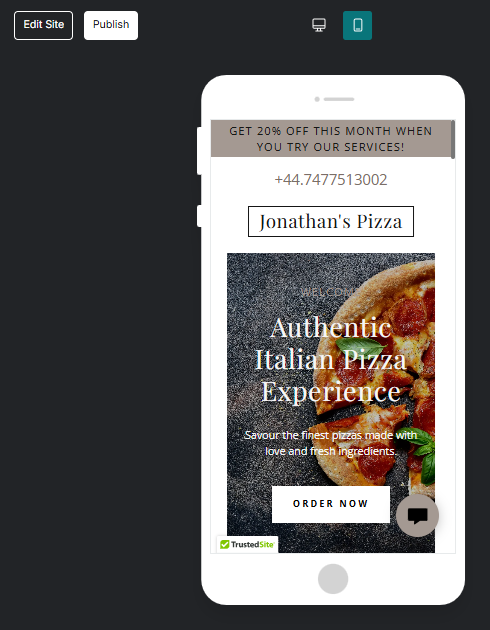
Before you publish, use preview mode to see exactly how your site will appear to visitors.
You can switch between desktop and mobile views to check both versions. Most people will visit your site on a phone, so it’s important to make sure everything looks clear, readable, and easy to use on a smaller screen.
Test links, buttons, and forms
Click through your site to make sure everything works as expected. Check that buttons and links go to the right places, and submit a test entry through your contact form to confirm it reaches your inbox.
Make quick edits before publishing
Jot down anything that looks off as you preview, then fix it before you hit publish. Pay attention to spacing, image quality, and whether the text reads well on a phone screen.
9. Publish your new website
Connect or choose your domain name
Before you publish, make sure your domain name is connected to your site. If you followed Step 1, this should already be in place. Your domain will connect automatically when you publish.
If you haven’t done this yet, you can connect an existing domain or buy a new 123 Reg domain during the publish flow.
Hit publish when you’re ready
When you’re happy with how everything looks, click Publish. Your site will go live within minutes.
Check everything looks right live
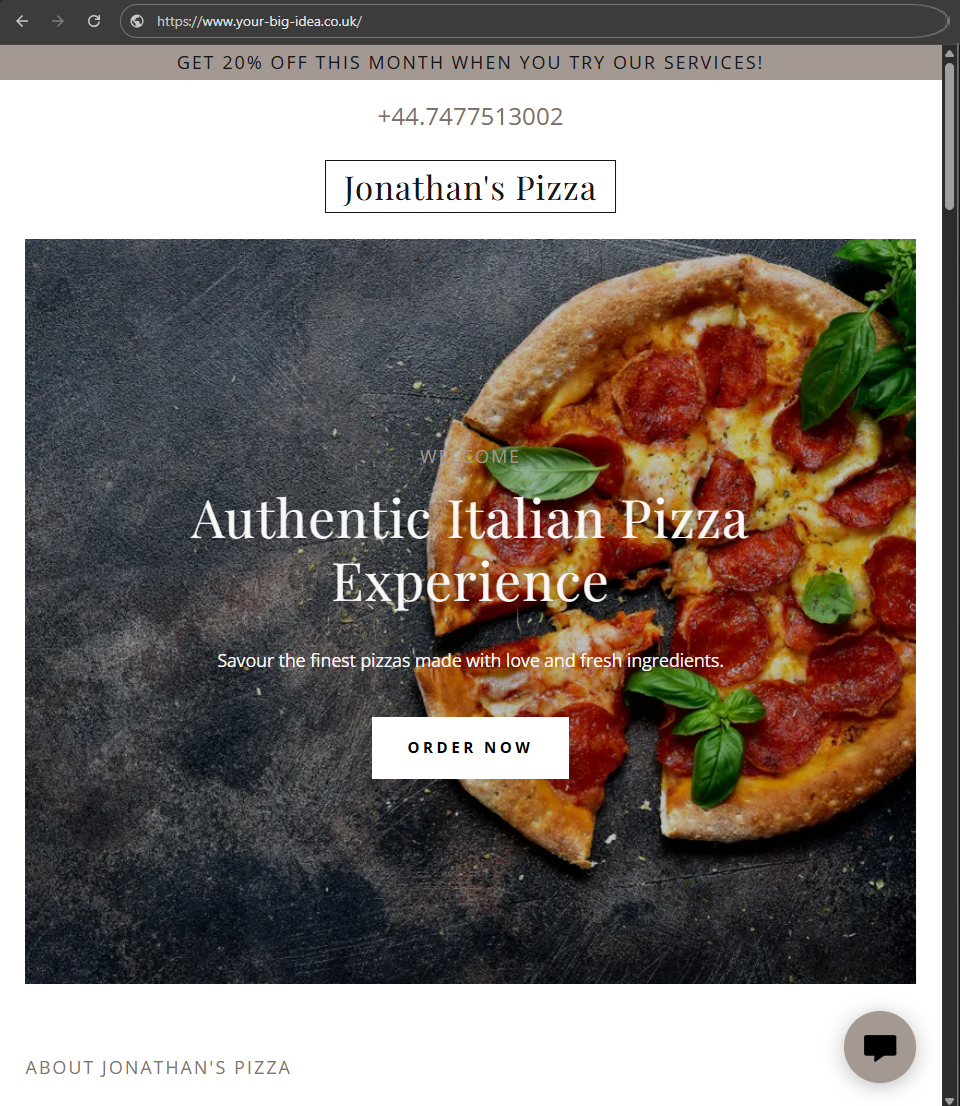
Once published, open your site in a browser. Check the live site looks as you expected. See how it looks on mobile and desktop, too. Website Builder take care of mobile optimisation in the background, so you needn’t worry about things looking out of place.
What to do after your site is live
You’re live, but your website isn’t a finished project. The businesses that get the most from theirs are the ones that keep it active, visible, and connected to everything else they’re doing. Here’s where to focus next.
Set up your professional email address
Your 123 Reg Website Builder plan includes a professional email address, so you can reach customers as hello@your-big-idea.com rather than from a personal Gmail or Hotmail account. It’s a small change that builds trust from the first point of contact.
Need a hand? Our Professional Email Support articles walk you through it step by step.
Get found in search, and in AI results
Website Builder comes with essential SEO tools built in, so you can cover the basics without any technical knowledge. Start with your meta titles and descriptions, they tell Google what each page is about and influence whether people click through. If you serve a specific area, our local SEO guide covers what helps you show up in local searches.
Search is changing too. AI tools are becoming a common way people find businesses, and our guide to Google AI mode explains what that means for small businesses.
Keep your social media and website working together
Social media is often where people first hear about your business, your website is where they go to get the details and decide whether to get in touch. The two work best pointing in the same direction. Our guide on social media and your website looks at how to use them together well.
Drive more traffic with Google Ads and Google Trends
SEO takes time to build. While you’re working on it, Google Ads can put your business in front of people already searching for what you offer. It’s also worth checking Google Trends to see how interest in topics changes over time, and shape your content around real search behaviour.
Wrap up
You’ve done it! Your website is live and ready for people to find, explore and get in touch with your business.
The technical side is only part of building a website. Knowing what to say, what to include and how to present your business is just as important — and you’ve now got a site that does all three.
Now, let’s share the link!

Any issues? Get get in touch with our Support team via Live Chat or call us on 0345 450 2310, and we’ll be happy to help.
Website Builder FAQ
How easy is it to build a website?
Building a website is much more straightforward than it used to be. With a tool like 123 Reg Website Builder, you can choose a template, add your content and publish when you’re ready. You don’t need coding or technical experience, and you can have a basic site up and running in just a few hours.
What’s the easiest way to build a website?
For most people, a website builder is the simplest option. You choose a design, add your text and images, and make changes as you go. Everything you need is in one place, so there’s no need to set up separate tools or learn how to code.
Can I get a free domain with my website?
Yes. Annual Website Builder plans include a free domain for the first year. Search for your chosen domain, add it to your basket with your Website Builder plan, and it will be included when you complete checkout.
See also: How Do I Connect My Domain to My Website? A 123 Reg Guide
Do I need a domain before I build my website?
No. You can build your website first and choose your domain during setup. If you already have a domain, you can connect it to your site later. If you don’t have one yet, you can search for and register one as part of getting your website online.
How much does it cost to get a website online?
The cost depends on how you build your website and which features you need. Website Builder plans offer different features at different price points, so you can choose a plan that suits your site and budget. Annual plans also include a free domain for the first year.
Can I build a website for free?
Yes, some website builders let you create a site for free. Free plans can come with limits, though, such as fewer features, less storage or a website address that includes the provider’s name. If you want to use your own domain and have more features, a paid Website Builder plan may be a better fit.
Do I need technical skills to build a website?
No. Website Builder is made for beginners, so you can add pages, edit text and upload images without knowing how to code. You don’t need previous web design experience either.
What do I need before I start building a website?
It helps to have your business name, a short description of what you do, your contact details, and any photos or brand assets ready. Having your content to hand makes it easier to build your pages and get your site ready to publish.
Will my website work on mobile?
Yes. Websites built with Website Builder are designed to work across different screen sizes, so your site can adapt to phones, tablets and desktop computers.
For more, check out: Why You Need a Mobile-Friendly Website (and How to Get One)